YouTube Live can be a useful destination for a B2B webinar, product demo, launch, or recurring broadcast. It gives teams a familiar public viewing surface and a replay that can live on a channel people already know.
The setup job is usually less glamorous: find the right stream key, copy the correct server URL, connect your encoder or webinar platform, test the stream, and avoid sending attendees into a workflow that loses registration context or follow-up signals.
This guide covers the practical RTMP setup path for YouTube Live and the B2B webinar decisions around it: registration, CTAs, audience records, replay, and follow-up.
If you are comparing destination workflows, the same RTMP setup cluster also covers LinkedIn Live RTMP setup, Facebook Live RTMP setup, and Custom RTMP streaming.
What the YouTube Live stream key does
A YouTube Live stream key is the private credential that lets an encoder or streaming platform send video to a specific YouTube Live stream. The server URL tells the tool where to send the video. The stream key tells YouTube which stream should receive it.
Treat the key like a password for the broadcast. If the wrong person has it, they may be able to send video to the stream before your team is ready. Keep it limited to the production owner, your encoder, or the platform that is sending the broadcast to YouTube.
For B2B teams, the stream key should be one part of the webinar workflow, not the workflow itself. YouTube can handle distribution. Your registration, attendee identity, conversion path, and follow-up plan still need an owner.
Before you start
Make sure the YouTube channel can go live before you build the rest of the broadcast around it. YouTube's live-streaming requirements say a channel needs to be verified and free of live-streaming restrictions in the past 90 days.
If live streaming is being enabled for the first time, leave time before the webinar. YouTube's encoder setup guide says first-time live-stream enablement may take up to 24 hours, then streams can go live instantly after that.
You should also decide:
- Which YouTube channel will host the stream
- Who has access to YouTube Studio and Live Control Room
- Whether the stream should be public, unlisted, or private while you test
- Whether YouTube is the main viewing destination or an additional distribution channel
- Where registration, reminders, CTAs, replay viewing, and follow-up will happen
For most B2B webinars, YouTube works best as a destination. The owned experience should usually live on your branded webinar page, where the team can capture registrations, show relevant CTAs, and keep audience data connected to follow-up.
How to create or schedule the YouTube Live stream
Open YouTube Studio from the channel that will host the broadcast, then use Create and Go Live to open Live Control Room. From there, use the Stream tab for an immediate stream or the Manage tab if you want to schedule a future stream.
The exact UI can change, so use YouTube's current help pages as the final source for channel-side setup. The important workflow is stable: create or schedule the stream, choose privacy and stream settings, then connect an encoder or external streaming platform.
When you schedule a B2B webinar stream, line it up with the rest of the campaign:
- Match the title and topic to the registration page
- Keep the privacy setting intentional while testing
- Confirm who will start and stop the encoder
- Decide whether chat will be used and who will moderate it
- Confirm whether the replay should stay public, unlisted, or be repurposed elsewhere
Do not wait until the presenter is in the waiting room to create the YouTube stream for the first time. Even if the technical connection is simple, the operating risk is avoidable.
Where to find the stream key and server URL
Once the stream exists in Live Control Room, YouTube shows the stream settings you need for an encoder or external platform. The two fields to look for are the stream URL and the stream key.
In a generic encoder, the stream URL may be called the server, RTMP server, server URL, or ingestion URL. The stream key may be called stream key, stream name, or key, depending on the tool.
The basic connection flow is:
- Create or schedule the stream in YouTube Live Control Room.
- Copy the stream URL from YouTube.
- Paste the stream URL into your encoder or streaming platform.
- Copy the stream key from YouTube.
- Paste the stream key into the matching stream-key field.
- Start sending video from the encoder and check the preview in YouTube.
Keep the stream key out of shared notes, public run sheets, and guest instructions. If an agency, contractor, or teammate needs access, give them the minimum access needed to operate the stream and rotate the key if there is any doubt.
RTMP vs RTMPS for YouTube Live
RTMP is the older streaming protocol many encoders and live production tools still use. RTMPS is the secure version of RTMP sent over a TLS or SSL connection.
For most teams, the practical decision is simple: use the secure YouTube RTMPS option when your encoder or platform supports it. Google's RTMPS ingestion guide describes RTMPS as RTMP through an SSL connection and notes that the connection URL needs the correct protocol, valid YouTube ingestion endpoint, and valid application path.
YouTube's RTMPS help article also explains that Live Control Room may show the ordinary RTMP URL by default, and that teams should use the lock icon in the Stream URL field when they need the RTMPS URL.
If the stream does not connect, check the basics first:
- The server URL starts with the expected protocol
- The stream key is copied from the right YouTube stream
- The encoder supports the protocol you selected
- The encoder is not trying to send a plain RTMP connection to an RTMPS endpoint
- The channel is enabled for live streaming
Do not turn protocol troubleshooting into guesswork. If the URL, key, protocol, and channel eligibility are correct, move to encoder settings and network stability next.
How to add YouTube as a destination from HeyStream
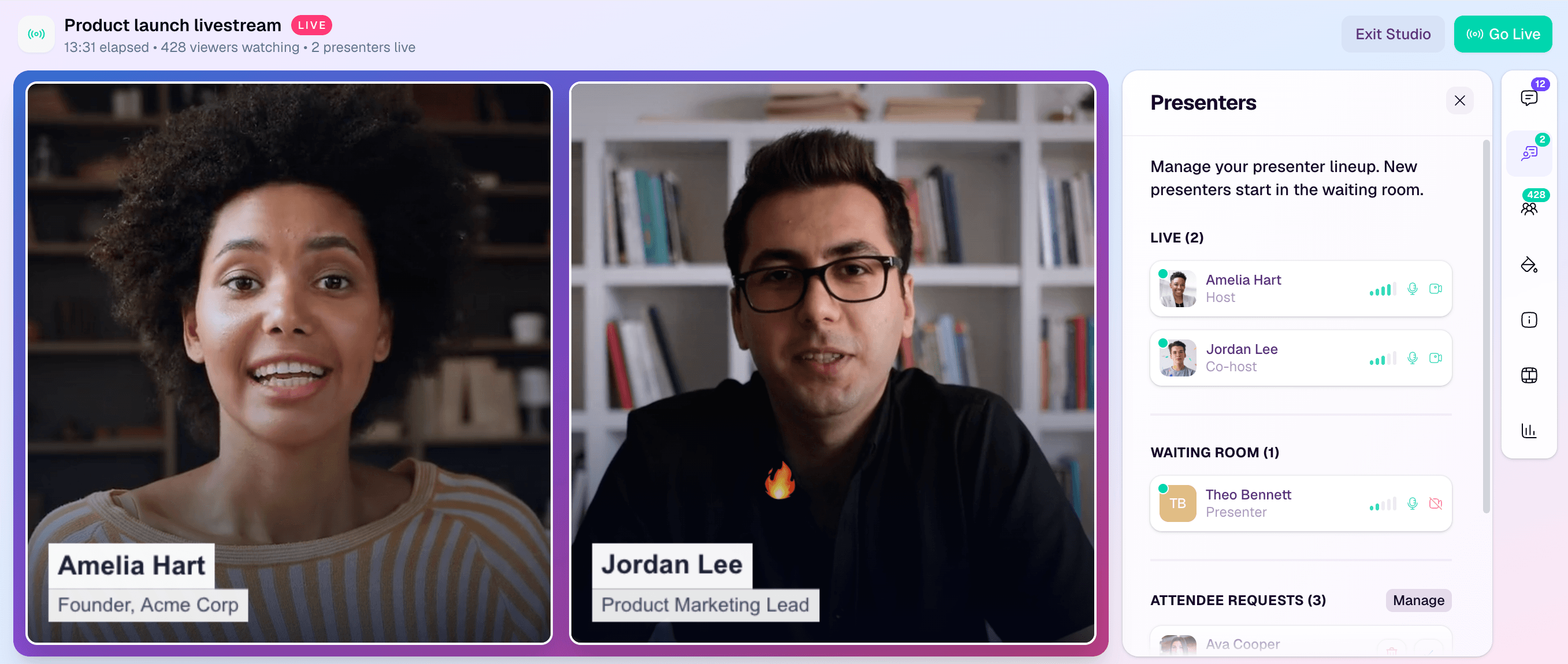
In HeyStream, YouTube can be used as a destination for a broadcast while HeyStream owns the branded registration, watch experience, CTAs, audience records, and follow-up workflow around it.
The workflow is:
- Build the broadcast in HeyStream.
- Set up your webinar registration pages and attendee journey.
- Add YouTube as a destination using the stream URL and stream key from YouTube Live Control Room.
- Prepare the live production in the branded live streaming studio.
- Test the connection before the public session starts.
- Go live when both HeyStream and YouTube are ready.
This keeps YouTube in the role it is good at: distribution and public replay access. It keeps the commercial webinar workflow inside a B2B webinar platform, where the marketing team can connect the live session to signups, CTAs, audience intelligence, and follow-up.
That distinction matters. A YouTube viewer is not automatically the same thing as a registered webinar attendee with a known company, engagement history, CTA activity, and follow-up path.
Encoder settings to check before the webinar
Use the official YouTube settings reference before choosing technical defaults. YouTube's encoder settings reference covers resolution, frame rate, bitrate, stream testing, supported protocols, video codecs, audio codecs, keyframe frequency, and advanced settings.
For most B2B webinar teams, the goal is not to squeeze the maximum possible resolution out of the stream. The goal is a reliable, watchable broadcast with clear slides, clean audio, and stable delivery.
Check these settings before the rehearsal:
| Setting | What to confirm |
|---|---|
| Resolution and frame rate | Choose settings your camera, slides, internet connection, and encoder can sustain. |
| Bitrate | Match YouTube's current guidance and leave headroom for network fluctuation. |
| Audio | Prioritize clean microphone audio over visual polish. Poor audio will make even a sharp stream feel broken. |
| Keyframe interval | Follow YouTube's current recommendation rather than your encoder's generic default. |
| Protocol | Prefer RTMPS when supported by the sender and destination setup. |
| Privacy | Use private or unlisted test settings until the team is ready for the public session. |
If the broadcast includes multiple presenters, screen sharing, video clips, or a high-motion demo, test with similar movement and audio to the real session. A silent static slide is not a meaningful pre-live test.
B2B webinar checklist before pressing Go Live
The technical RTMP connection is only one part of a webinar that needs to create business value. Before the public stream starts, run a checklist that covers the whole operating model.
| Area | Pre-live check |
|---|---|
| Registration | The registration page is live, tracking is working, and registrants receive the right join instructions. |
| Stream connection | The YouTube stream URL and stream key are in the right destination fields and the preview appears in Live Control Room. |
| Presenter workflow | Speakers know where to join, who starts the broadcast, and who handles issues. |
| Privacy | YouTube privacy settings match the campaign plan for test, live, and replay phases. |
| Chat and moderation | The team knows whether YouTube chat is enabled, who monitors it, and what questions should be pulled into follow-up. |
| CTAs | Webinar CTAs are ready for the live session and replay, with a clear next step for interested viewers. |
| Audience data | The team knows where registrations, attendance, clicks, and replay behavior will be reviewed. |
| Follow-up | The post-event owner knows what happens for attendees, no-shows, CTA clickers, and replay viewers. |
This is where many webinar workflows become fragile. The team gets the stream online, but no one owns the action path after the viewer arrives.
Test the stream before the public session
Run a rehearsal that proves the actual workflow, not just the video feed. Start from the same tools, destinations, presenter links, slides, and CTA plan you expect to use live.
A useful test should confirm:
- YouTube receives video and audio from the encoder or platform
- The preview appears in Live Control Room
- The audio is clear and in sync
- Slides, demos, and camera framing are readable
- The correct YouTube privacy setting is active
- The branded registration and watch flow works as expected
- CTAs appear at the right moment
- Replay and follow-up ownership are clear
YouTube's own settings guidance recommends testing before a live stream and including audio and movement similar to the real event. That is especially important for B2B webinars, where slides and speech carry most of the value.
Common YouTube RTMP troubleshooting checks
If the stream does not appear in YouTube, start with the simplest causes:
- The stream key was copied from a different YouTube stream
- The stream URL was copied without the right protocol
- The channel is not enabled for live streaming
- The encoder is sending to RTMP while the URL expects RTMPS, or the reverse
- The encoder settings are outside YouTube's current recommendations
- The upload connection is unstable
- The stream privacy setting is not what the team expected
If YouTube shows a stream-health warning, do not ignore it just because the preview appears. Check bitrate, keyframe interval, audio settings, network stability, and whether the encoder is trying to send a higher-quality stream than the setup can reliably support.
If the issue appears shortly before a public webinar, have a fallback decision ready. For example, the team may keep the branded watch page as the primary attendee destination and delay the YouTube simulcast until the destination is stable.
After the stream: replay, audience records, and follow-up
When the live session ends, the work is not finished. YouTube may give the broadcast a useful replay surface, but the B2B value usually comes from what your team does with the audience signal afterward.
Review:
- Who registered
- Who attended live
- Who clicked a CTA
- Who returned for replay
- Which questions came up during the session
- Which segments need a sales, nurture, or product follow-up
- What should change before the next session
This is where audience intelligence and webinar follow-up automation matter. A viewer who stayed for the pricing section, clicked a demo CTA, or returned to the replay should not receive the same generic follow-up as someone who registered and never attended.
If you run webinars regularly, connect each session back to a broader B2B webinar growth engine: a repeatable system for planning, registration, live engagement, replay, CTAs, audience signals, and the next follow-up motion.
When YouTube should be the main destination
YouTube can be the main destination when the goal is broad public access, community visibility, public replay, or a lower-friction viewing experience for an audience that already expects to watch on YouTube.
It is often better as a secondary destination when the goal is registration capture, account-level visibility, pipeline follow-up, or a controlled attendee journey. In those cases, send registrants to the branded webinar experience and use YouTube as an additional distribution channel.
Here is the practical difference:
| Workflow | Best fit | Tradeoff |
|---|---|---|
| YouTube-only stream | Public broadcast, community update, open replay, or creator-style audience | Simple distribution, but weaker ownership of registration, CTAs, and attendee identity. |
| HeyStream plus YouTube destination | B2B webinar, product demo, launch, recurring series, or campaign with follow-up | More complete marketing workflow while still using YouTube for distribution and replay reach. |
The right answer depends on the job of the session. If the broadcast only needs to be watched, YouTube may be enough. If the broadcast needs to create measurable next steps, make YouTube one destination inside a workflow that captures what happens before, during, and after the stream.
The practical takeaway
To go live on YouTube with RTMP, you need a live-enabled YouTube channel, a stream in Live Control Room, the right stream URL, the right stream key, and an encoder or streaming platform that can send the broadcast reliably.
For B2B webinars, that is the setup layer. The growth layer is what surrounds it: branded registration, a clear watch experience, CTAs, replay engagement, audience records, and follow-up. YouTube can help the broadcast reach viewers. It should not be the only place where the webinar's value is captured.