Custom RTMP is the escape hatch for webinar teams that need to send a live broadcast somewhere their platform does not list by name. Instead of choosing a preset destination, you bring the destination's stream URL and stream key, test the connection, and then send the broadcast feed there.
That flexibility is useful, but it also shifts more operational responsibility onto your team. You need to know who owns the destination account, whether the stream key is still valid, what the destination expects before it goes live publicly, and how your registration, replay, CTAs, audience records, and follow-up will still work after the stream leaves your webinar platform.
This guide explains how Custom RTMP works for B2B webinar teams, how to set it up in HeyStream, and how to avoid the common issues that appear only when a live stream is minutes away.
For destination-specific setup, the same RTMP setup cluster also covers LinkedIn Live RTMP setup, YouTube Live RTMP setup, and Facebook Live RTMP setup.
What Custom RTMP Means
Custom RTMP is a manual live-streaming destination. The destination platform gives you connection details, and your webinar or streaming platform uses those details to publish a live video feed.
Most setup flows come down to two fields:
| Field | What it means | How to treat it |
|---|---|---|
| Stream URL or server URL | The destination endpoint that receives the live feed. | Paste it exactly as the destination provides it, including rtmp:// or rtmps:// when supplied. |
| Stream key | The secret value that authorizes your stream for that destination. | Treat it like a password. Do not paste it into shared planning docs or public runbooks. |
Mux's RTMP configuration guide uses the same practical split: the server URL identifies the ingest server, while the stream key authenticates the live stream. Twitch describes a similar URL pattern in its developer docs, where the Twitch stream key identifies and authorizes the broadcast.
That is the core idea behind Custom RTMP: if a destination accepts an RTMP or RTMPS feed, HeyStream can send a broadcast there when you provide the right endpoint and key.
When B2B Teams Should Use Custom RTMP
Use Custom RTMP when the destination matters, but it is not covered by a native preset.
Common examples include:
- A partner, community, or customer portal that provides a private RTMP endpoint.
- A regional or industry-specific video destination.
- An enterprise streaming service controlled by another team.
- A temporary event page where the host gives you a one-off stream URL and key.
- A destination that supports RTMP, but not OAuth or a direct integration.
For B2B webinar teams, the important point is that Custom RTMP should extend your distribution, not replace your webinar workflow. You can still use HeyStream as the branded layer around the event: the B2B webinar platform for registration, the live experience, replay, CTAs, audience context, and follow-up.
Custom RTMP is best when you need destination flexibility and still want the business workflow to stay organized.
What You Need Before Setup
Before adding a Custom RTMP destination, collect the details in one secure owner-controlled place:
- Destination account owner.
- Stream URL or server URL.
- Stream key.
- Whether the destination requires RTMP or RTMPS.
- Whether the stream key is one-time, reusable, scheduled, or expiring.
- Destination-side preview or go-live steps.
- Who will watch the destination during the rehearsal and live session.
- Fallback plan if the destination does not accept the feed.
RTMPS is RTMP over a secure connection. Google's RTMPS guidance for YouTube Live is a useful reminder that secure ingest URLs are not interchangeable with plain RTMP URLs: the protocol, server, path, and port all have to match what the destination expects. If the destination gives you an rtmps:// URL, do not silently convert it to rtmp://.
You should also confirm whether the destination expects a specific encoder configuration. Amazon IVS's RTMP publishing documentation shows the common pattern: publish to an RTMP or RTMPS endpoint with a stream key, then make sure the encoder settings match the platform's requirements.
How Custom RTMP Works In HeyStream
In HeyStream, Custom RTMP is an addable streaming destination. The setup flow asks for a label, a stream URL, and a stream key, then lets you run a short test before saving.
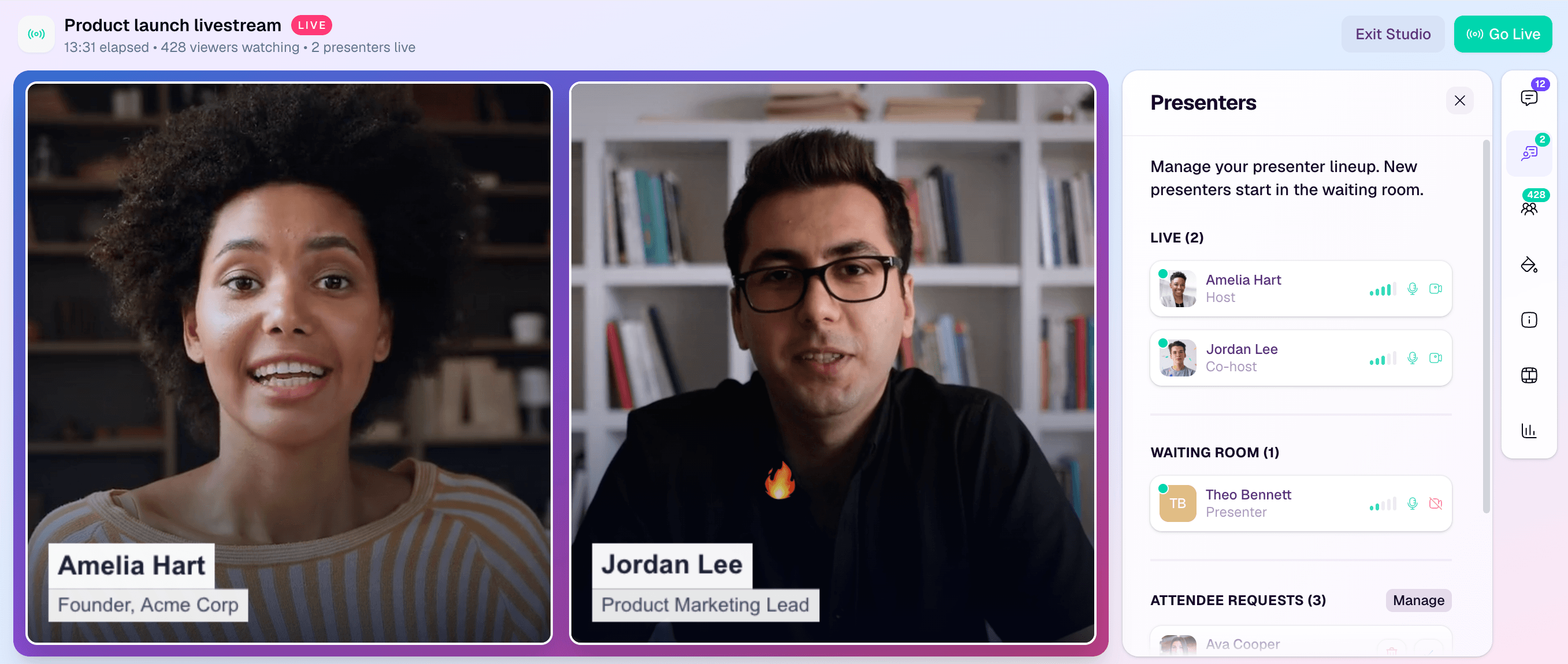
The normal setup flow is:
- Open your workspace's streaming destinations.
- Choose Add Destination.
- Select Custom RTMP.
- Add a label your team will recognize, such as the partner name or event destination.
- Paste the destination's stream URL exactly as provided.
- Paste the stream key.
- Run the test stream.
- Save the destination, or save and activate it for the broadcast.
HeyStream stores the stream key as a secret and does not expose it back to the client-safe destination record. If you later edit the destination, the stream key field can be left blank to keep the existing key, or filled in to replace it.
The test step sends a short synthetic stream to the destination. It is not your real webinar content, but some platforms may briefly register a test connection. Tell the destination owner before you run the test, especially when a partner or customer controls the receiving platform.
What The Test Proves
A passed test means the destination accepted a short synthetic RTMP publish using the current endpoint and stream key. That is valuable, but it is not the same as a full live rehearsal.
It proves:
- The endpoint is reachable from the validation worker.
- The stream key is present.
- The destination accepted a short RTMP publish attempt.
- The basic connection details are not obviously wrong.
It does not prove:
- The destination page is public.
- The destination has completed its own preview or go-live step.
- Chat, notifications, captions, replay processing, or analytics are working on that destination.
- The destination will keep accepting the feed for the whole webinar.
- The destination will send audience identity, CTA clicks, or engagement data back to HeyStream.
That distinction matters. Keep HeyStream's webinar registration pages, watch experience, and replay plan as the owned attendee journey. Treat the Custom RTMP destination as an additional output.
Pre-Live Checklist
Use this checklist before you depend on a Custom RTMP destination for a live webinar:
| Area | Check |
|---|---|
| Ownership | Name the person who owns the destination account and can regenerate credentials. |
| Credentials | Confirm the stream URL and stream key are current, private, and pasted into the right fields. |
| Protocol | Check whether the destination requires RTMP or RTMPS. |
| Rehearsal | Run a test stream and confirm the destination sees it. |
| Destination controls | Confirm who will click preview, start, publish, or go live on the destination side. |
| Live workflow | Confirm presenters, slides, audio, layouts, and the HeyStream streaming studio are ready. |
| Conversion path | Decide whether viewers should use HeyStream webinar CTAs, the destination chat, or another action path. |
| Replay | Decide where the replay will live and which link gets sent after the event. |
| Follow-up | Assign the owner who will review audience intelligence and run webinar follow-up automation. |
| Fallback | Decide what you will do if the destination fails minutes before go-live. |
The best Custom RTMP setups are boring by the time the webinar starts. Everyone knows which platform owns which part of the workflow.
Troubleshooting Custom RTMP Failures
When a Custom RTMP destination fails, avoid changing everything at once. Work through the likely causes in order.
| Symptom | Likely cause | What to check |
|---|---|---|
| Test fails immediately | Wrong URL, missing protocol, or unsupported endpoint. | Compare the stream URL with the destination's exact ingest instructions. |
| Test says the key is rejected | Expired, regenerated, or pasted into the wrong field. | Ask the destination owner to generate a fresh key and paste it carefully. |
| RTMPS destination fails with SSL or timeout errors | Protocol, server, path, or port mismatch. | Re-check the full secure URL instead of switching to plain RTMP. |
| Test passes, but the public page stays offline | Destination requires a separate preview or go-live action. | Have the destination owner open the destination dashboard and complete its live step. |
| Stream appears but quality is unstable | Network, bitrate, encoder, or platform settings issue. | Reduce complexity for rehearsal and confirm the destination's recommended settings. |
| Destination works once, then fails later | One-time key, expiring scheduled stream, or changed destination settings. | Confirm whether the key is reusable for future broadcasts. |
If a test passes but the destination still does not show the webinar publicly, the issue may be outside HeyStream. The receiving platform may require approval, a scheduled event state, a dashboard preview, or a manual go-live action before viewers can watch.
Native Destination, Custom RTMP, Or HeyStream Watch Page?
Custom RTMP is not always the best first choice. Use the destination type that matches the job.
| Option | Best for | Tradeoff |
|---|---|---|
| Native destination | Common platforms with a standard setup path. | Easier setup, but limited to supported destinations and platform-specific rules. |
| Custom RTMP | Destinations that provide a stream URL and key but are not listed by name. | Flexible, but your team owns credential handling, testing, and destination-side go-live steps. |
| HeyStream watch page | Owned registration, live viewing, replay, CTAs, audience records, and follow-up. | Best for the core attendee journey, not a replacement for every external distribution need. |
For most B2B webinars, the strongest setup is not either-or. Use the HeyStream watch page for the owned journey, then use native or Custom RTMP destinations for distribution where they add reach or partner value.
After The Stream
The work is not finished when the destination goes live. Custom RTMP can send the video feed to another platform, but your team still needs to decide where the conversion and follow-up loop lives.
After the session, check:
- Was the HeyStream replay created and shared with registrants?
- Which CTAs were shown live or on replay?
- Which viewers, registrants, and replay watchers should receive follow-up?
- Did the external destination create its own replay, comments, chat, or analytics?
- Are there audience records in HeyStream that sales, customer success, or marketing should act on?
- Should this destination remain saved, become default, or be removed after the event?
Custom RTMP gives your webinar team a flexible output. The business value comes from pairing that output with a clear webinar system: registration, branded live delivery, replay, CTAs, audience learning, and follow-up.