Facebook Live is often useful as a secondary broadcast destination: a place to reach a community, promote a product update, or let social followers watch a webinar without making Facebook the center of your whole event workflow.
The setup is still worth treating carefully. A Facebook Live stream key is sensitive, the preview step is easy to misunderstand, and some workflows require you to start the stream in your webinar platform and then publish it inside Facebook Live Producer. This guide walks through the practical setup for B2B teams that want Facebook distribution while keeping registration, CTAs, replay, and follow-up in an owned webinar workflow.
Before you connect Facebook Live
Before you open Facebook Live Producer, make sure the broadcast has an owner, a destination, and a fallback plan. At minimum, you need:
- Access to the Facebook Page, Group, Event, or profile where the live video will appear.
- A broadcast title and description that match the audience and destination.
- A streaming tool or webinar platform that can send RTMP or RTMPS output.
- A stable connection and a short pre-live test window.
- Someone responsible for checking Facebook while someone else watches the webinar experience.
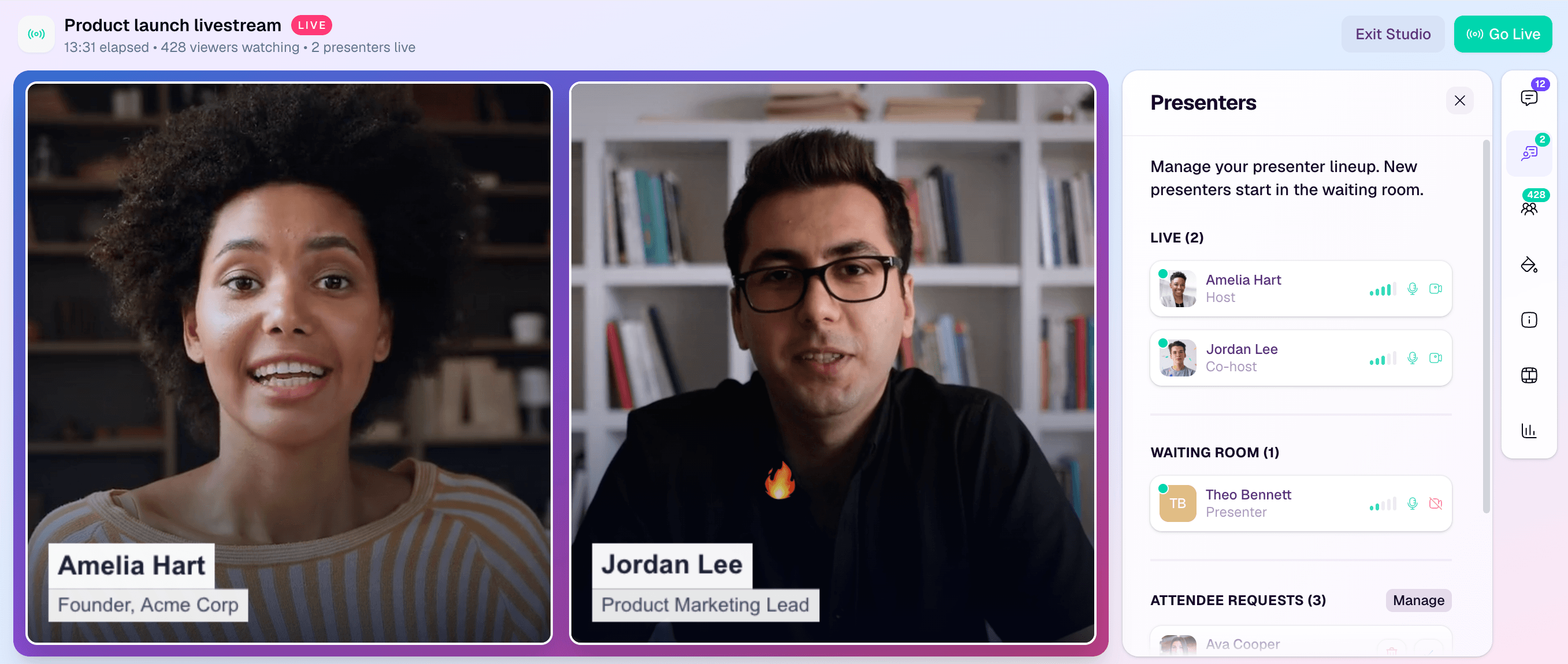
For most B2B teams, Facebook should sit beside the owned webinar experience rather than replace it. Use Facebook to reach followers or a community, but send the core signup journey through your webinar registration pages, run the session from a browser-based webinar studio, and use webinar CTAs and webinar follow-up automation to keep the next step measurable.
What a Facebook Live stream key does
A Facebook Live stream key is the credential that tells your streaming tool where to send the video feed. In the usual encoder workflow, Facebook gives you two pieces of information:
- Server URL: the Facebook ingest endpoint for the live video.
- Stream Key: the private key that identifies your specific broadcast or reusable stream setup.
Treat the stream key like a password. Anyone who has it may be able to send video to that destination while it is valid, so do not paste it into shared docs, screenshots, or public runbooks.
Meta's Live Video API documentation describes live broadcasts as LiveVideo objects that return stream URLs for encoders, including secure RTMPS URLs, and it also notes eligibility requirements for accounts, Pages, and professional-mode profiles. For a normal operator using Facebook Live Producer, the important takeaway is simpler: use the secure RTMPS endpoint when Facebook gives you one, and keep the stream key private.
If you also stream to other platforms, it helps to separate the generic RTMP pattern from the Facebook-specific steps. The broader Custom RTMP setup guide explains how stream URLs and stream keys work across destinations, while this article focuses on the Facebook Live workflow.
Pick the right Facebook destination
The destination changes the operational risk and the audience expectation. Choose it before you copy the stream key.
| Destination | Best fit | Watch-outs |
|---|---|---|
| Facebook Page | Company updates, public product broadcasts, community reach | Make sure the operator has the right Page permissions and checks the public post before promotion. |
| Facebook Group | Customer community sessions, private member broadcasts, education for an existing audience | Group permissions and event setup can vary. Test the exact workflow before the live slot. |
| Facebook Event | Scheduled broadcasts where people expect a specific start time | Scheduled flows may have a separate preview and go-live step. Keep the Facebook tab open. |
| Personal profile | Founder-led or personal-audience broadcasts | Use only when it fits the brand and privacy expectations. It is usually not the main B2B webinar destination. |
Facebook is a distribution endpoint. The owned webinar system should still answer the commercial questions: who registered, who watched, which CTA they clicked, what they watched on replay, and what follow-up should happen next. If the session is part of a repeatable program, a dedicated B2B webinar platform or recurring webinars workflow is usually a cleaner home base.
Find the Server URL and Stream Key in Facebook Live Producer
Facebook's UI changes often, so verify the exact labels before a high-stakes broadcast. The stable shape is:
- Open Facebook Live Producer.
- Choose where the live video should post.
- Choose whether the video is going live now or being scheduled.
- Select the streaming software or encoder option.
- Copy the Server URL and Stream Key into your streaming tool.
- Keep the Facebook tab open until the stream is fully live.
Restream's Facebook stream-key walkthrough explains the practical Live Producer path: choose the profile, Page, or group, select the streaming software flow, then reveal the stream key for your encoder. Proclaim's updated Facebook stream URL guide is also useful for the current operator pattern because it shows Facebook generating both a Server URL and a Stream Key and warns that the key should be kept private.
If Facebook offers a persistent stream key, use it only when the convenience is worth the extra security responsibility. Persistent keys can reduce repeat setup work, but they are also easier to leak or reuse accidentally. For one-off public launches, a fresh event-specific key is often safer.
Add Facebook Live as a destination in HeyStream
In HeyStream, Facebook works as a streaming destination for your broadcast. The practical workflow is:
- Create or open the broadcast in HeyStream.
- Add Facebook as a destination.
- Keep the default Facebook RTMPS endpoint unless the current Facebook setup gives you a different Server URL.
- Paste the Facebook Stream Key into the destination settings.
- Save the destination and include it in your pre-live test.
The default Facebook RTMPS endpoint in HeyStream is rtmps://live-api-s.facebook.com:443/rtmp. Use that only with the current stream key from Facebook Live Producer. If Facebook gives your team a different server URL for a scheduled event or specific destination, follow the value Facebook provides for that broadcast.
Because Facebook custom RTMP does not automatically turn Facebook into your webinar system, keep the conversion path separate. The registration page, live CTA, replay path, audience record, and follow-up sequence should still live in HeyStream. That is what lets the team learn from the broadcast instead of only knowing that a stream happened.
Run a pre-live Facebook RTMP checklist
A short checklist prevents most Facebook RTMP failures.
| Check | Why it matters |
|---|---|
| Destination access | Confirms the operator can post to the Page, Group, Event, or profile. |
| Fresh stream key | Avoids sending the feed to an old or wrong Facebook setup. |
| RTMPS endpoint | Reduces mismatch between the encoder URL and Facebook's secure ingest URL. |
| Facebook tab open | Keeps the preview and go-live controls available. |
| HeyStream registration page | Gives invitees an owned place to register and receive reminders. |
| CTA ready | Makes the live session actionable instead of just visible. |
| Replay and follow-up owner | Ensures the team knows what happens after the stream ends. |
| Test feed | Confirms Facebook receives video before the scheduled start. |
Do the test with enough time to fix a destination problem calmly. If you are streaming to several places, test Facebook separately so a Facebook-only issue does not distract from the rest of the event.
Go live in the right order
The most common operator mistake is assuming that sending video to Facebook is the same thing as being publicly live on Facebook. In many workflows, it is not.
A safer sequence is:
- Start the broadcast or outbound feed from HeyStream.
- Confirm Facebook Live Producer receives the preview.
- Check audio, video, destination, title, and description.
- Click Go Live in Facebook if Facebook still requires a publish step.
- Monitor HeyStream and Facebook during the opening minute.
StreamYard's Facebook Group RTMP help article is a useful operational reminder here: some custom RTMP workflows require going live in both the streaming tool and Facebook Live Producer, unless an automatic scheduled start has been configured. Do not assume the public Facebook post is live until you verify it from the Facebook side.
Troubleshoot common Facebook Live RTMP issues
If Facebook does not show a preview, check the Server URL, Stream Key, and whether the HeyStream destination is enabled for that broadcast. Also confirm the stream key came from the correct Facebook destination, not another Page, Group, Event, or old test.
If Facebook shows a preview but the audience cannot see the stream, check whether Live Producer is waiting for you to click Go Live. This is especially easy to miss when the streaming tool says it is already live.
If the stream is rejected, check for RTMP versus RTMPS mismatch, expired or regenerated stream keys, account or Page eligibility, and destination permissions. Meta's developer documentation notes that secure stream URLs and stream-health data are part of Facebook's live-video flow, so treat stream health as something to inspect rather than guess.
If the wrong audience sees the broadcast, stop and verify the destination before restarting. A Page, Group, Event, and profile can all look similar during setup, but they are very different public outcomes.
If Facebook comments or viewer counts are missing inside the streaming studio, that may be normal for custom RTMP workflows. Stream the video to Facebook, but keep the core webinar engagement and follow-up signals in HeyStream.
After the broadcast
When the live session ends, stop the HeyStream broadcast and confirm Facebook has ended or saved the video as expected. Meta's Live Video API documentation describes an ended broadcast as being saved with VOD status, but the exact public replay behavior can depend on the Facebook destination and settings, so verify the post after the stream.
Then move viewers back into the owned workflow:
- Send the replay to registrants and qualified no-shows.
- Follow up with people who clicked the live CTA.
- Segment viewers by attendance, replay behavior, questions, and next-step actions.
- Use the Facebook post as a distribution asset, not as the only source of truth.
If the same session also belongs on YouTube, compare the setup with the YouTube Live RTMP setup guide. YouTube, Facebook, and a custom RTMP destination all use similar building blocks, but each platform has its own preview, scheduling, and publishing behavior.
When Facebook Live is the right B2B destination
Facebook Live makes sense when your audience already uses a Facebook Page, Group, or Event and the session benefits from appearing there. That might be a customer community broadcast, partner session, public product update, local event, or founder-led discussion.
It is weaker as the only destination for a B2B webinar program. Facebook does not replace your registration page, reminder flow, live CTA strategy, replay plan, audience intelligence, or sales and customer-success follow-up. Use it when it extends reach, not when it hides the signals your team needs.
The cleanest setup is simple: produce the session in HeyStream, send a tested RTMPS feed to Facebook Live, verify the public post, and keep the measurable webinar journey in your own system.