LinkedIn Live can be a useful distribution channel for B2B webinars, launches, demos, customer sessions, and founder-led events. The catch is that LinkedIn should not be treated as the whole webinar system. It is the reach layer: the place where your audience already spends time, sees event reminders, and gives your broadcast social proof.
For a serious B2B webinar, you still need the owned layer around it: a registration path, a branded watch experience, useful calls to action, replay, audience records, and follow-up. That is where a B2B webinar platform such as HeyStream fits alongside LinkedIn Live.
This guide walks through the current LinkedIn Live RTMP workflow for B2B teams: eligibility, scheduling, stream URL and stream key timing, encoder settings, rehearsal, troubleshooting, and what to do after the stream so LinkedIn reach can become owned follow-up.
If you are comparing destination workflows, the same RTMP setup cluster also covers YouTube Live RTMP setup, Facebook Live RTMP setup, and Custom RTMP streaming.
What LinkedIn Live RTMP Means
RTMP is the connection method that lets a production tool send your live video feed into LinkedIn Live. In practice, LinkedIn gives you a Stream URL and Stream Key for a scheduled Live Event, and your streaming tool sends the broadcast to that destination.
For B2B teams, that matters because LinkedIn Live is rarely just a casual stream. You may be hosting a product launch, a thought-leadership webinar, a customer story, a partner session, or a live demo. RTMP lets you produce that event in a streaming studio, then send it to LinkedIn as one distribution destination.
The strategic split is simple:
| Layer | What it handles | Why it matters |
|---|---|---|
| LinkedIn Live | Event discovery, attendee notifications, social comments, public reach | Helps your webinar show up where B2B buyers and peers already are |
| HeyStream | Registration, branded watch pages, CTAs, audience records, replay, follow-up | Gives your team an owned conversion workflow around the broadcast |
Use LinkedIn for reach. Use HeyStream for the attendee journey and follow-up system around that reach.
Check LinkedIn Live Eligibility First
Before you plan the stream, check LinkedIn's access criteria for the profile or Page that will host it. LinkedIn says eligible members and Pages can create and broadcast LinkedIn Lives, but access depends on criteria such as audience base, policy standing, geography, and account or Page age.
This is important because HeyStream can help you produce and route the broadcast, but it cannot grant LinkedIn Live access or override LinkedIn's event rules. If your Page or profile does not show LinkedIn Live as an event format, fix that before you build the rest of the workflow.
For a B2B team, decide early who owns the event:
- A company Page is usually better for demand generation, product launches, and branded webinars.
- A founder or executive profile may work better for founder-led sessions or audience-building, if that profile has access.
- A partner or customer co-host can help distribution, but the organizer still needs LinkedIn Live access.
Treat eligibility as a preflight check, not a last-minute setup step.
Plan Around Scheduled Events, Not Instant RTMP
The most important current workflow change is that LinkedIn Live custom RTMP should be planned as a scheduled event. LinkedIn says instant custom RTMP streaming is no longer available, and that as of June 22, 2026, live events must be scheduled ahead of time.
That does not mean you need weeks of lead time. LinkedIn says you can still go live on short notice by scheduling the event a few minutes ahead. But it does mean your runbook should not depend on an old "go live instantly" flow.
A practical B2B workflow looks like this:
- Confirm the host Page or profile has LinkedIn Live access.
- Create the LinkedIn Live Event in advance.
- Build the owned webinar experience in HeyStream.
- Add LinkedIn as an RTMP destination.
- Rehearse with speakers and production roles.
- Generate the Stream URL and Stream Key when LinkedIn makes them available.
- Preview the feed in LinkedIn Live Studio.
- Click Go live only when the team is ready to broadcast publicly.
- Use replay and audience signals for follow-up.
That rhythm gives you enough structure for a real webinar without turning LinkedIn setup into a scramble.
Create the LinkedIn Live Event and Prepare the Stream
Once eligibility is confirmed, create the Live Event for the Page or profile that will host the stream. LinkedIn's own custom-stream documentation says scheduled Live Events are prepared through Live Studio before broadcast, and LinkedIn's custom stream instructions are the source of truth for the exact platform steps.
In plain English, the flow is:
- Create or locate the scheduled Live Event.
- Open LinkedIn Live Studio and go to the Manage streams page.
- Find the scheduled stream.
- Click Prepare to go live when LinkedIn makes it available.
- Choose the closest region if your exact region is not listed.
- Generate the Stream URL and Stream Key.
- Paste those values into your streaming tool.
- Start sending video from the streaming tool.
- Confirm the preview in LinkedIn Live Studio.
- Click Go live in LinkedIn only when you are ready to broadcast.
The preview step is easy to misunderstand. Seeing video in LinkedIn Live Studio does not mean the public event is live yet. It means LinkedIn is receiving the feed. Your audience sees the stream only after you click Go live in LinkedIn.
Add LinkedIn as an RTMP Destination in HeyStream
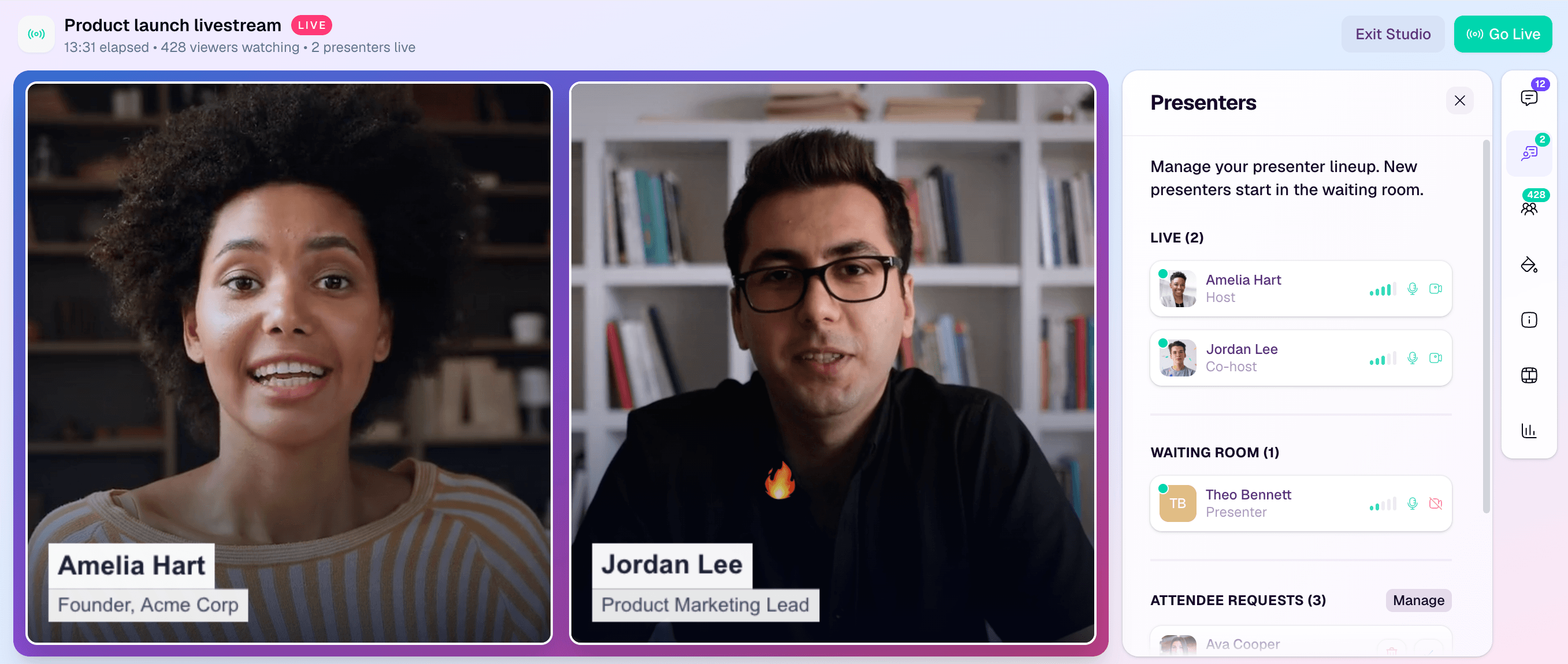
In HeyStream, set up the webinar or live broadcast first: title, speakers, branding, webinar registration pages, watch experience, and the action you want viewers to take.
Then add LinkedIn Live as a destination when you have the Stream URL and Stream Key from LinkedIn. Keep those credentials limited to the production team. They are not public event links, and they should not be pasted into shared docs, calendar invites, or slide decks.
This is also the moment to decide what HeyStream should own around the stream:
- The registration page for people you want to capture before the event.
- The branded watch page for viewers who should not be sent only to LinkedIn.
- The webinar CTAs that turn attention into a demo request, product signup, resource download, or next session.
- The replay page and follow-up path for people who engage after the live session.
LinkedIn is useful distribution. The owned webinar layer is what gives your marketing team a way to learn from the audience and keep the journey going.
Use LinkedIn's Encoder Settings
Use LinkedIn's encoder settings as the technical source of truth before going live. At the time of drafting, LinkedIn lists these core settings for custom RTMP streaming:
| Setting | LinkedIn guidance |
|---|---|
| Aspect ratio | 16:9 |
| Resolution | 720p recommended, 1080p maximum |
| Frame rate | 30 fps |
| Keyframe interval | Every 2 seconds |
| Video bitrate | 3.5 Mbps recommended, 6 Mbps maximum |
| Audio bitrate | 128 Kbps |
| Audio sample rate | 48 KHz |
| Encoding | H.264 video and AAC audio |
| Protocol | RTMP or RTMPS |
LinkedIn also recommends a speed test and a stable connection. For a webinar, use a wired connection wherever possible, close bandwidth-heavy apps, and rehearse from the same machine and network you plan to use for the real event.
If your stream reaches LinkedIn but fails to process cleanly, check the encoder profile. LinkedIn's guidance notes that using the Baseline profile can avoid issues caused by higher profiles.
Build a B2B Pre-Live Checklist
LinkedIn setup is only one part of the job. A B2B webinar also needs a commercial and operational checklist.
Before the event, confirm:
- LinkedIn Live access is available for the host Page or profile.
- The LinkedIn Live Event is scheduled.
- Speakers know when to join, how to test audio, and who handles transitions.
- The Stream URL and Stream Key are generated inside the available window.
- HeyStream has the LinkedIn RTMP destination added.
- The registration page, reminder path, and watch page are ready.
- The primary CTA is clear and visible during the webinar.
- The team knows what should happen if LinkedIn preview, stream health, or speaker connectivity fails.
- Sales or marketing knows which audience signals matter after the event.
The CTA matters more than many teams expect. If the only post-event action is "watch the recording," the webinar creates attention but not much intent. Use a specific next step: book a demo, get the checklist, join the next session, view a product walkthrough, or ask for a follow-up.
Go Live Without Surprises
On event day, separate testing from broadcasting.
Start the stream from HeyStream or your production tool, then confirm the preview in LinkedIn Live Studio. Do not click Go live until the team is ready for the public broadcast. If you are only testing, stop the stream from your broadcast tool instead of starting the LinkedIn event publicly.
LinkedIn's RTMP FAQ explains that Stream URL and Stream Key access depends on the host type: verified Pages get access earlier than unverified Pages or profiles, and preview mode has different time limits. Plan your rehearsal window around those limits.
For a clean launch, assign roles:
- Producer: watches stream health and LinkedIn preview.
- Host: opens and closes the session.
- Speaker lead: manages speaker timing and handoffs.
- Chat or comments owner: watches LinkedIn engagement.
- Marketing owner: checks CTA placement, links, and follow-up triggers.
That may sound formal, but it prevents the common webinar failure mode: everyone assumes someone else is watching the live destination.
Troubleshoot the Common RTMP Issues
If LinkedIn Live setup fails, the cause is usually one of a few things:
| Issue | What to check |
|---|---|
| LinkedIn Live is missing from the event options | Re-check host eligibility, Page/profile age, policy standing, geography, and organizer selection |
| Stream URL or Stream Key is not available | Confirm the event is scheduled and you are inside LinkedIn's preparation window |
| Region is missing or overloaded | Choose the closest available region or another nearby region |
| Preview appears, but viewers cannot see the stream | Confirm someone clicked Go live inside LinkedIn Live Studio |
| Stream health is poor | Use a wired connection, lower load on the network, and confirm LinkedIn's recommended settings |
| Video fails to process | Check encoder profile, keyframes, bitrate, resolution, and audio settings |
The safest rule is to rehearse the full chain, not just the studio. Test the speaker flow, the stream destination, the CTA, and the post-event handoff.
Turn LinkedIn Reach Into Owned Follow-Up
The work is not finished when the stream ends. For B2B teams, the real value often comes from what happens next: replay views, CTA clicks, high-intent questions, resource downloads, and sales follow-up.
LinkedIn can help create reach. HeyStream helps you keep the journey measurable through replay, CTAs, webinar follow-up automation, and audience intelligence.
After the event, look for signals:
| Signal | Possible next step |
|---|---|
| Attended live and clicked a demo CTA | Fast sales or founder follow-up with event context |
| Watched replay and clicked a product resource | Send a practical next-step resource or invite to a product session |
| Registered but did not attend | Send the replay with a short reason to watch |
| Asked a detailed question | Route the question to the right owner before sending generic nurture |
| Attended but took no action | Share a related guide, customer example, or future session |
This is where a LinkedIn Live webinar becomes part of a broader B2B webinar growth engine. The stream creates market contact. The owned workflow turns that contact into learning, routing, and next steps.
When to Use LinkedIn Live Alone vs LinkedIn Live Plus HeyStream
LinkedIn Live alone can be enough for a lightweight announcement, community conversation, or informal audience-building session where the main goal is visibility.
Use LinkedIn Live plus HeyStream when the event has a business job:
- You need a branded registration and watch experience.
- You want live and replay CTAs.
- You care about audience records, not just public viewers.
- You need follow-up based on what people did.
- You want the webinar to support sales, demand generation, or product marketing.
- You plan to reuse the replay as content.
The more the webinar needs to produce action after the stream, the more important the owned layer becomes.
The Practical Takeaway
To go live on LinkedIn Live with RTMP, start with LinkedIn's rules: eligibility, scheduled events, stream key timing, and encoder settings. Then build the webinar workflow around those rules.
For B2B teams, the stronger setup is not "LinkedIn or a webinar platform." It is LinkedIn for distribution plus an owned webinar system for registration, CTAs, replay, audience insight, and follow-up. That combination gives you the reach of a social live event without losing the conversion path after the broadcast ends.