A polished live session does not have to start with a physical studio, a complex desktop production stack, or a room full of specialist equipment.
For many B2B teams, the more important question is simpler: can the team create a live experience that feels prepared, branded, easy to join, and ready to support follow-up after the session ends?
That is where a browser-based live streaming studio can be useful. It gives hosts and presenters a controlled place to manage the session, bring in media, switch layouts, guide audience participation, and connect the live moment to registration, replay, CTAs, and audience signals.
What a live streaming studio means for a B2B team
A live streaming studio is the workspace where a team prepares and runs the broadcast itself. It usually includes presenter access, camera and microphone controls, layouts, screen sharing, media, audience interaction, recording, and go-live controls.
For a B2B webinar, demo, launch, or recurring broadcast, the studio is not only a production surface. It is the part of the workflow where the audience experience becomes visible to the team. The host can decide what viewers see, when a speaker comes on screen, when a product demo takes focus, and when the next step should appear.
That makes it different from a generic meeting room. A meeting room is designed for conversation. A B2B live streaming studio is designed for a hosted audience experience, with presenters on one side and viewers on the other.
It is also different from a full desktop production setup. Tools like OBS Studio have shaped what many people expect from production software: scenes, multiple sources, transitions, audio controls, and a production mindset. That kind of control is powerful, especially for advanced production teams. But not every marketing team needs to build every webinar around desktop production software.
A browser-based studio gives teams a lighter path when the goal is to run a branded live session, keep presenters coordinated, and make sure the session creates useful next steps.
Choose the right studio setup
The right production route depends on the session, the people operating it, and where the audience needs to watch. A browser studio is not automatically better than desktop production, and multistream distribution adds reach without preserving one unified moderation or measurement model.
| Studio route | Best fit | Strengths | Tradeoffs | When to choose it |
|---|---|---|---|---|
| Browser-based webinar studio | Branded hosted sessions run by marketing, customer, or event teams | Presenter ease, built-in engagement, recording, replay, and integrated audience signals | Less specialist control over complex scenes, audio, and local production | The same team owns the attendee journey from registration through follow-up |
| Desktop production tool | Advanced productions with a dedicated operator | Specialist scene composition, audio and video control, and local production workflows | More setup, operator expertise, and coordination with the webinar platform | Fine-grained production control matters more than presenter simplicity |
| Browser studio plus webinar multistreaming or RTMP distribution | Sessions that also need external streaming destinations | An owned webinar experience plus broader distribution | Moderation, audience ownership, and cross-platform measurement can be split | External reach is essential and the team has a clear plan for each destination |
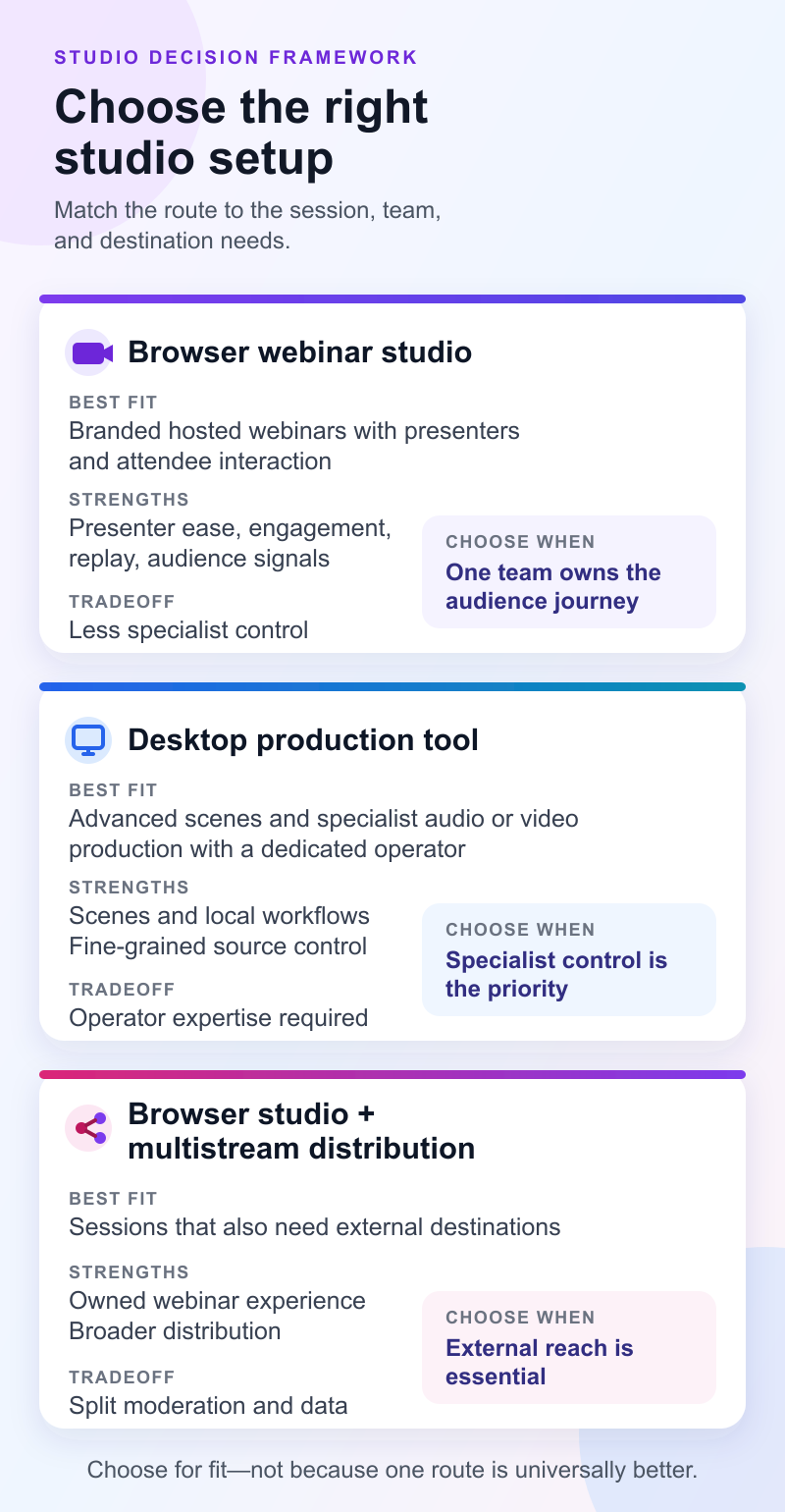
Choose the lightest route that gives the team the control it genuinely needs. If external destinations matter, decide in advance where questions will be moderated, which audience record is authoritative, and how results from separate platforms will be reviewed.
Decide what the session needs to accomplish
Before opening the studio, decide what the live session is supposed to do.
That sounds obvious, but it changes the setup. A product demo, executive announcement, customer panel, workshop, and recurring webinar series all need different levels of presenter control, audience interaction, and follow-up.
A good planning question is: what should a viewer be ready to do when the session ends?
That action might be booking a demo, starting a trial, downloading a resource, joining a follow-up session, asking a question, viewing the replay, or moving into a nurture path. Once the action is clear, the studio setup becomes easier to judge. Layouts, speaker roles, screen sharing, CTAs, and moderation should all support the outcome.
This is also where a live session connects to the wider B2B webinar growth engine. The broadcast is only one part of the loop. Registration, engagement, replay, audience intelligence, and follow-up all shape whether the session creates useful momentum after the live moment.
Prepare the branded attendee experience first
A common mistake is to treat the studio as the beginning of the webinar workflow. For viewers, the experience starts earlier.
The registration page sets expectations. The reminder flow reduces friction. The watch page shapes how the session feels before anyone speaks. The replay experience determines whether people who missed the live event can still engage with the content later.
For a B2B team, that means the studio should be connected to the surrounding attendee journey. Set up the webinar registration pages, speaker details, session title, agenda, reminder path, watch-page branding, and replay expectations before the team starts refining the live controls.
If the session is part of a larger platform evaluation or recurring program, it also helps to think about the broader B2B webinar platform workflow. The studio should not sit apart from the rest of the system. It should support the way the team captures registrations, hosts the session, records engagement, and follows up.
The practical goal is simple: when presenters enter the studio, they should be preparing the live experience, not discovering unresolved attendee-experience decisions.
Set up the browser-based studio controls
Modern browsers can work with local camera and microphone streams through web media APIs. The MDN Media Capture and Streams API documentation explains the underlying browser capability at a high level: browsers can request access to media devices, apply constraints, and work with audio and video tracks.
For marketers, the important point is not the technical API. It is that a browser-based studio can give presenters a familiar, lower-friction way to prepare and run a live session without asking every host to manage a full production stack.
Set up the studio around the actual session flow:
| Studio area | What to check | Why it matters |
|---|---|---|
| Presenter access | Host, co-host, guest, and waiting-room links | Prevents role confusion before going live |
| Camera and audio | Microphone, camera, lighting, headphones, and browser permissions | Reduces avoidable quality issues |
| Layouts | Host view, guest view, panel, screen share, demo, and offer moments | Keeps the broadcast visually clear |
| Media | Slides, clips, logos, lower thirds, and screen shares | Makes transitions smoother |
| Audience tools | Chat, Q&A, polls, attendee requests, and moderation | Helps participation feel intentional |
| Recording and replay | Recording status, replay plan, and post-session owner | Keeps the content usable after the live session |
A browser-based Streaming Studio should make these controls easy enough for the team to manage without turning every webinar into a production project. The studio choice should also account for the required recording workflow and whether the broadcast must reach destinations beyond the owned watch page.
The important discipline is to prepare each control for a reason. If a layout does not help the audience understand the session, skip it. If a prompt does not support engagement or the next step, simplify it. Production polish should make the session easier to follow, not heavier to operate.
Plan engagement and conversion moments
A branded studio is not only about how the broadcast looks. It is also about when the audience is invited to participate or take action.
For B2B sessions, engagement should be mapped to the flow of the content. A poll works best when it helps the host understand the audience; use a focused bank of webinar poll questions to choose prompts the host can act on during the session. Q&A works best when it captures real objections, questions, and buying-stage signals. Chat works best when it has a clear role, such as collecting examples, reactions, or resource requests.
The same principle applies to CTAs. A CTA should appear when the viewer has enough context to care, not only because the session is nearly over. In a product demo, that might be after the workflow has been shown. In a workshop, it might be after the audience understands the gap they need to fix. In a launch broadcast, it might be when the new capability is most concrete.
HeyStream's Conversion Tools are designed around that live and replay context, so teams can place next-step prompts where they naturally support the session. A good CTA does not interrupt the webinar. It gives the viewer a useful path at the moment they are most ready for it.
Run a realistic rehearsal
A rehearsal should test the real operating conditions of the broadcast, not just whether everyone can join the room.
Walk through the opening, speaker handoffs, screen shares, demo transitions, media playback, poll or Q&A moments, CTA timing, recording, and closing. If there is a moderator or producer, rehearse their role too. A reusable webinar moderator script and checklist can make ownership for handoffs, technical recovery, live Q&A, and closing actions explicit before the team goes live.
For higher-stakes sessions, assign ownership clearly:
| Role | Owns |
|---|---|
| Host | Opening, session flow, speaker transitions, and closing |
| Speaker | Core content, demo, expertise, and audience answers |
| Moderator | Chat, Q&A, attendee requests, and resources |
| Producer | Studio controls, layouts, media, recording, and backup plan |
| Follow-up owner | Replay, segmentation, sales handoff, and nurture path |
Smaller teams can combine roles, but the responsibilities still need to be clear. The risk is not that one person holds two roles. The risk is that nobody owns a critical moment.
A good rehearsal also checks what happens if something goes wrong. If a presenter drops, who keeps talking? If a screen share fails, what is the fallback? If a CTA link is wrong, who catches it? The point is not to script every second. It is to make the team calm enough to recover.
Go live with a clean operating rhythm
Once the session starts, the studio should support the host instead of distracting them.
Start with a clear promise for the audience: what they will learn, how long the session will run, how they can ask questions, and what will happen after the broadcast. Keep housekeeping short and useful.
During the session, switch layouts only when the change helps the viewer. Use full-screen speaker moments for context, panel views for conversation, screen share for demos, and offer or resource moments when the next step is timely. If the studio has every control available but the session feels busy, the production is doing too much.
Capture the signals that matter: who attended, who asked questions, who clicked a CTA, who stayed for the demo, who returned for the replay, and which moments created the most useful responses. Those details are more useful than treating attendance as the only measure of success.
That is where audience intelligence and analytics insights become part of the studio story. The live room is where signals are created. The post-event workflow is where those signals become useful.
After the broadcast: replay, review, and follow up
The live broadcast should not be the end of the work.
Prepare the replay quickly, especially for registrants who could not attend live. Add relevant replay CTAs, resource links, and next-step paths so on-demand viewers can still act. Replay should not feel like leftover content. For many B2B audiences, replay is part of how they evaluate, share, and return to the session.
Then segment follow-up by behavior. Attendees, no-shows, replay viewers, CTA clickers, question askers, and highly engaged viewers should not all receive the same generic message. A team does not need to overcomplicate this, but the follow-up should reflect what the person actually did.
That is where follow-up automation can help. When the webinar platform captures the right activity, the team can respond faster and with more relevance.
Finally, review the session before planning the next one. Look at registrations, attendance, watch time, engagement moments, CTA clicks, replay activity, and questions. Use a webinar performance report template to turn that evidence into a consistent debrief and a short list of changes for the next broadcast.
Where HeyStream fits
HeyStream is built for teams that want live broadcasts to feel polished without separating the broadcast from the growth workflow around it.
The Streaming Studio gives teams a browser-based way to run branded live sessions with presenter workflows, layouts, screen and media sharing, engagement controls, and recording. Around that studio, HeyStream connects registration pages, watch pages, live and replay CTAs, audience intelligence, analytics, and follow-up automation.
That combination matters because a B2B live session is not only a video moment. It is a chance to capture attention, understand the audience, guide the next step, and make the next broadcast stronger.
A good studio helps the team go live with confidence. A better workflow helps the session keep working after the broadcast ends.