A Pipedrive webinar integration is useful when it puts the right session context beside the right person and leaves your team able to choose what happens next. With HeyStream, the native connection syncs people, selected registration responses and registration or attendance notes. A team member still decides whether that context calls for an internal task, work on an existing opportunity, or no sales action.
Start by separating the records involved. A person record, a note and a scheduled activity each answer a different question. This guide explains what to inspect after sync, how to create an owned follow-up task in Pipedrive, and how to check the handoff before relying on it for your next webinar.
Decide which Pipedrive record you need
Pipedrive's guide to contact people and leads separates the individual contact from the sales opportunity being qualified. A person can exist without a lead or deal, and one person can be linked to multiple opportunities.
Use that distinction when deciding what a webinar event should change.
| Object | Job | Webinar example | Boundary |
|---|---|---|---|
| Person | Holds an individual's identity and contact details | A registrant's name and email | Having a contact does not establish an opportunity |
| Note | Adds context to a record | Which session the person attended | Context alone does not schedule work |
| Lead | Tracks a potential opportunity awaiting qualification | A reviewed enquiry that needs qualification | Attendance alone is insufficient reason to create one |
| Deal | Tracks a qualified opportunity in a pipeline | An opportunity your team has agreed to pursue | Apply your qualification policy before creating or changing it |
| Activity | Records chosen work, such as a task | An assigned review with a due date | Saving the task does not mean the work happened |
In Pipedrive's lead and deal model, a deal represents a qualified opportunity that your team is actively working. Registering for a webinar does not establish that qualification.
Pipedrive notes hold context for the person or opportunity you are viewing. An attendance note can explain why someone needs review. The activity is the separate record that makes chosen work visible, with an owner and a schedule.
Check what your webinar connector actually writes
For any connector, write down the source event, the destination object and the action. "Webinar data synced" is too vague to use as an acceptance condition. A registration that creates a person and a note has a different result from one that creates a lead or schedules a task.
For the broader mapping and architecture decisions, use our guide to webinar CRM integration. Here, the question is what the Pipedrive record enables your team to do next.
What HeyStream sends
The HeyStream Pipedrive integration sends people, selected registration responses and broadcast activity notes into Pipedrive. It supports registration and attendance events. For those events, the connector looks for a person by exact email address and updates a matching result or creates a person when none is found.
Selected answers go into person fields. The connector writes broadcast context as a note on the person, including the broadcast title and ID, registration time and available activity time. Although the integration page describes broadcast "activity", these are person notes. The native connector does not create Pipedrive Activity objects, leads or deals, or assign a follow-up owner.
HeyStream's audience intelligence provides broader audience context inside the product. Check the connector's specific scope before assuming that watch time, CTA clicks, questions or replay behaviour arrive in Pipedrive. Those signals are not all part of this native connection.
Keep setup focused:
- Check current integration plan access. CRM and email integrations are included in Growth and Scale. Launch's built-in audience CRM does not imply access to external CRM integrations.
- Follow Pipedrive's API-token instructions. The token is under Settings, Personal preferences, API, and your permission set may hide it. Use it in the connection form and keep it out of shared screenshots and support messages.
- Select the answers each connection should receive using HeyStream's field-mapping guide. The selection is in the registration question's Sync to Integrations section, managed through the broadcast, series or question library.
For Pipedrive, selected custom fields use the question label with a HeyStream prefix, and values are sent as text. Keep labels stable and check the resulting person fields. A person field reflects a value on that contact; it is not a history of every answer across every session.
What your sales workflow still decides
Your team chooses the reviewer, qualification policy, relevant opportunity and next action. It also decides whether any communication is appropriate. Registration or attendance alone is neither buying intent nor permission to send marketing.
Review the person's existing relationship and open work before adding more. Our guide to prioritize sales outreach with webinar engagement data explains that judgement in more depth. The decision here can be modest: ask the existing owner to review the context, or record why no sales action is needed.
Turn a person note into an owned next step
Use this manual procedure after you can inspect the synced person and the correct session note. It describes a team member's actions in Pipedrive. HeyStream's native connector does not perform these steps for you.
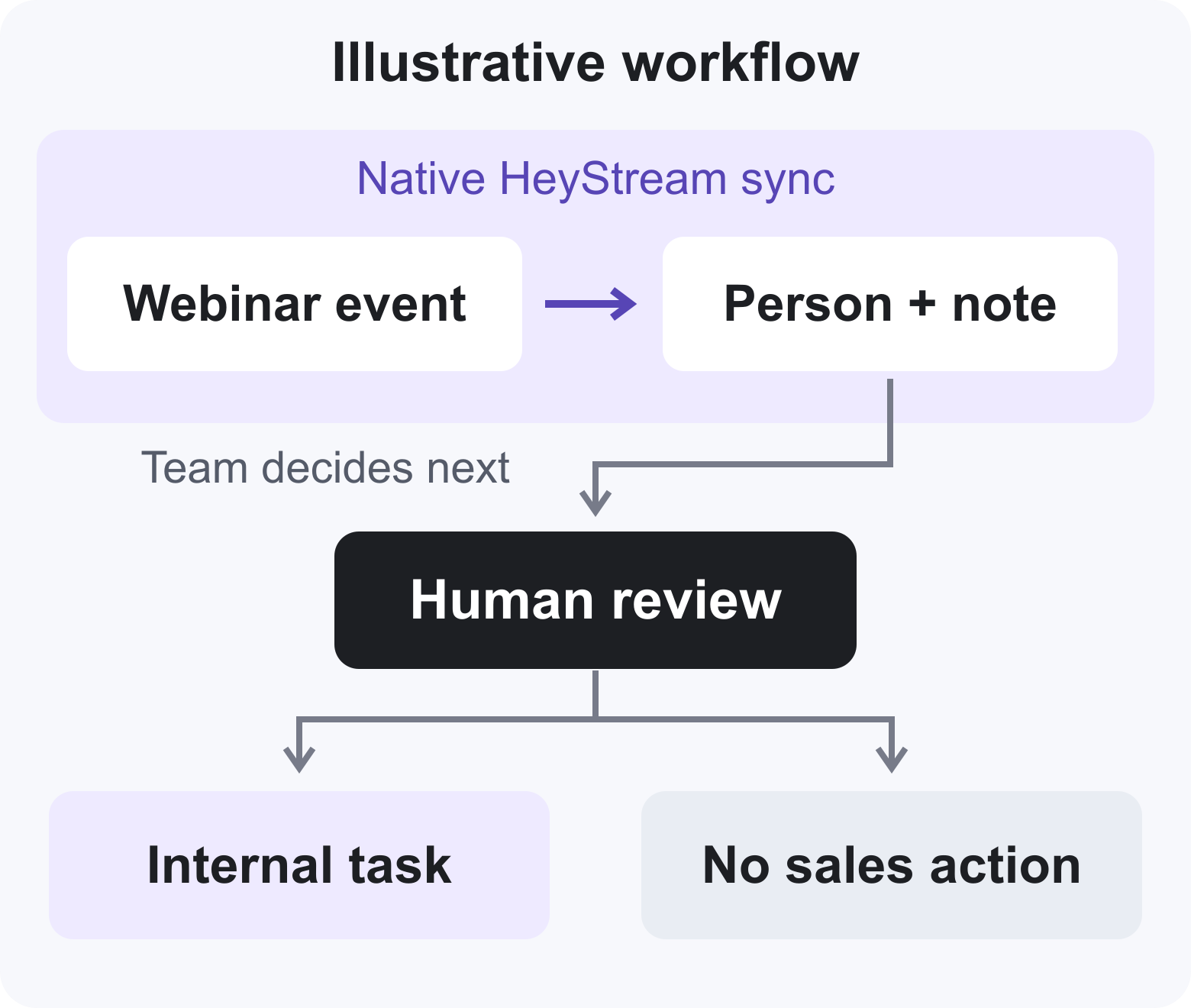
The illustration separates native sync from human review. Any new lead or deal requires its own qualification decision beyond the simple branches shown.
- Confirm the person. Open the person record and compare the email and record ID with the intended contact. A matching display name is insufficient. If several people share an address or the account already contains duplicates, resolve the identity question before creating work.
- Find the session context. Read the note for the specific broadcast. Compare its broadcast ID, event type and time with the source record. Distinguish registration from attendance, and session A from session B.
- Inspect existing ownership and work. Check the account or contact owner and any linked leads, deals and open activities you can access. Find out whether someone is already handling the same issue.
- Choose the response. Record a reason for no sales action, create an internal review task, add work to an existing opportunity, or consider a new opportunity under your qualification policy. A new webinar note alone should not change a deal's stage or value.
- Create an internal task if needed. Pipedrive's activity guide explains how to add an activity from an item's detail view. Open the relevant person or deal, choose its activity tab and select the Task type. For a lead, use its Activity tab in Leads Inbox.
- Make the task specific. Give it a subject that names the work and session, link the appropriate record, choose the responsible user, and set a team-agreed due date. Check the time zone. Put internal context in the activity's private note field and leave guests empty for an internal review task. Guest invitations and external communications are outside this check.
- Save and inspect the result. Confirm the saved activity's owner, linked person or opportunity, due date and activity ID. Ask the intended reviewer to check visibility. Pipedrive requires a user to have visibility into all items linked to an activity to see it.
- Record completion separately. Mark the activity done only after the agreed work occurs. Add its outcome, including a decision to take no further sales action. A saved activity proves that work was scheduled; its completion and outcome need their own check.
For a no-action decision, record the reviewer and reason in your team's chosen record. You do not need to manufacture a task simply to populate a report.
Handle repeat attendees and existing opportunities
The same contact can attend several sessions while one sales conversation continues. Review the new context before adding another activity or opportunity.
A returning person attends session B
Illustrative example: a prospect attended session A and already has an open internal review task. They later attend session B. The reviewer checks both session notes and the existing task before deciding whether the new context changes the work.
The reviewer may update the existing task's context rather than add another. Keep references to both sessions where useful. Do not use the latest selected person-field value as evidence of what the person answered in session A, and do not assume email matching guarantees duplicate-free records or notes.
The person already has an open deal
Illustrative example: a contact with an active opportunity attends a technical session. The marketing reviewer checks the deal owner and open activities, then asks that owner whether the session changes the agreed next step.
If another task is justified, link it to the existing opportunity. Do not create another deal or alter the current stage and value just because the person attended. Any change needs the same qualification and ownership review your team would apply outside a webinar.
A customer attends for education
Illustrative example: an existing customer attends a session to learn how to use a feature. The reviewer retains the useful session context and records that no acquisition sales action is needed.
A customer-success review may be appropriate under the team's own process. Keep that purpose explicit so an educational visit does not become an unexplained new sales opportunity.
Use a handoff acceptance worksheet
Copy this worksheet into your team's existing operating record for one permitted test or reviewed handoff. It is an editorial checklist, not a Pipedrive export or a HeyStream feature.
| Record in the worksheet | Evidence to inspect |
|---|---|
| Person ID or link | Correct email and intended Pipedrive person |
| Source webinar or session ID | Exact broadcast, not just its display title |
| Observed event and time | Registration or attendance, with the source timestamp |
| Note or evidence reference | Matching session context on the person |
| Selected-field checks | Intended answers arrived in the expected person fields |
| Existing opportunity and activity check | Relevant owner and open work reviewed |
| Review decision and reason | Why work is needed, or why no sales action is appropriate |
| Responsible owner | Named task owner or no-action reviewer |
| Next action and due date | Specific work and time zone, when a task is justified |
| Linked object and activity ID | Saved task attached to the intended person or opportunity |
| Completion and outcome | Evidence that the agreed work occurred, or the recorded no-action outcome |
| Reviewer | Who checked the handoff and when |
Treat delivery, review and completion as separate results. A person and note can arrive correctly while the review is still waiting. A reviewer can choose a task that remains unfinished. The worksheet should make those differences visible without imposing a universal response-time target.
Verify the handoff before relying on it
Run controlled checks only with accounts and test contacts you are permitted to use. Record the expected and observed result for each case. Keep the acceptance test internal; it does not need a customer email, call or invitation.
- Registration. Submit a permitted test registration and compare the resulting person ID, selected fields and registration note with the source.
- Attendance. Test an eligible attendance event separately. A successful registration sync does not establish that an attendance note arrived.
- Returning person. Use another session for the same intended person, then check the person match, session context and existing follow-up before creating work.
- Existing opportunity. Confirm that the reviewer can find the relevant deal and its owner. Inspect any manually created task's linked records.
- No sales action. Check that the reviewer can record this decision and its reason without creating a lead or deal.
- Manual task. Save one appropriate internal review task, inspect the owner and due date, and distinguish that saved state from later completion.
A successful credential check establishes access, not a complete handoff. If a person exists but the expected note or selected field is missing, preserve what arrived and inspect available error evidence, provider permissions and question-level field selection before retrying. Avoid repeated writes while the cause is unclear.
HeyStream's integration troubleshooting guide distinguishes contact resync from historical attendance activity. Historical resync creates or updates contacts and configured fields; it does not reconstruct historical attended activity. It writes data and is not a read-only diagnostic. Check what is missing before choosing it as a recovery action.
Make the next webinar easier to review
For one upcoming session, agree which person and session evidence the reviewer should inspect, who owns the decision, and where any resulting task will live. Use the worksheet to check what arrived and what happened next.
Carry the rules into your recurring webinar workflow, while keeping each session's evidence separate. If you later automate part of the process, verify the actual trigger, destination object, fields, permissions, plan access and behaviour on retries and repeat attendance. A new person note does not establish that a note-triggered automation exists or is configured.