If a webinar confirmation email was not received, first confirm the event and registered address, then recover the attendee's legitimate join link through the organizer or the platform's supported access route. For the organizer, the next job is to find where the evidence stops: registration and timing, a send attempt, the receiving mail system, or the recipient finding the message.
Checking spam can help an attendee now. It does not explain an email that was never due, a paused reminder, or an attempt still waiting on the sending service. Use the decision table below to assign the next check, then keep a short record so support does not have to start again.
Need the join link now?
If you are attending rather than organizing, work through these checks:
- Confirm the event, session date and email address you used to register. Check whether you used a work address, personal address or an alias.
- If the provider offers an event account or saved calendar entry with access details, check that record. Confirm it belongs to the current session.
- Search your mailbox for the event title, organizer and expected sender. Include junk and spam folders.
- Contact the organizer through its known support route. Ask them to verify your registration and provide the supported access option for your session.
Keep personal join links private. Do not use another attendee's link or repeatedly register to try to force an email. If access is still unavailable, tell the organizer how soon the event starts. Access recovery and the investigation into the missing message can proceed separately.
Identify which system sends this message
Start with one affected message. Is it a registration confirmation, a scheduled attendee reminder, a presenter message or a post-event email? Those can have different schedules, eligibility rules and sending owners.
Record the exact event or session, intended recipient, expected time and time zone. Then identify the application that should create the message and the service that sends it. The organizer's display name and website address do not establish who operates the email service.
For an external email workflow, a successful CRM sync only establishes that particular data handoff. Investigate whether the intended automation ran and whether it reached the email action. If that system is ActiveCampaign, use the separate guide to verify ActiveCampaign webinar follow-up before investigating downstream delivery.
For a workspace managed by another organization, ask that workspace's owner which sending setup applies. Looking in your own email account will not settle what happened in theirs.
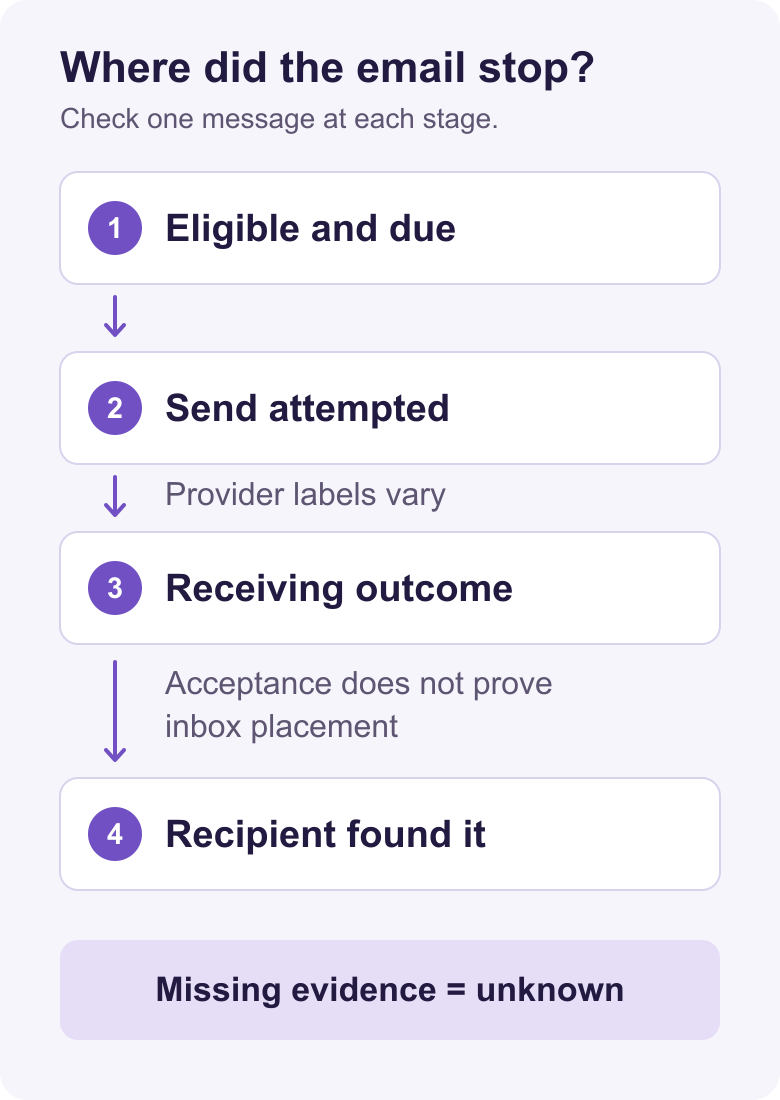
Check registration, eligibility and timing first
Before calling this a delivery failure, check whether this recipient should have received this message at that time:
- Verify the saved address and the correct session and role. An attendee reminder and a presenter reminder are different messages.
- Check that registration is complete. Review approval or waitlist status where the platform uses those states.
- Confirm the relevant template or campaign is enabled and the sending account meets its requirements.
- Compare the expected send time with the actual schedule, time zone and registration time.
- If the event changed, check the current session details and the schedules in connected systems. The webinar cancellation and rescheduling checklist covers that separate communications job.
Microsoft's Teams webinar troubleshooting guide illustrates why these checks matter. It distinguishes pending approval and waitlisted registrations from confirmed registrations whose messages may be quarantined. Those are Teams-specific examples, not universal status labels or instructions for changing another platform's settings.
Do not assume a late registrant should receive a reminder whose send time has already passed. Likewise, restoring account eligibility or resuming a template does not prove missed messages will catch up. Check the provider's rules and available history before choosing a recovery action.
Once eligibility and delivery are understood, use the webinar reminder email templates for wording and normal reminder cadence. Rewriting the subject line will not resolve an unexplained missing send.
Find the first missing piece of delivery evidence
A send attempt means an application tried to send a message. Acceptance by its sending provider establishes that handoff. Acceptance by the recipient's mail system is a later observation. Recipient receipt means the person can find the intended message.
SMTP's delivery standard describes successful completion of a message transfer as the receiving SMTP server accepting responsibility for delivery or further handling. It does not establish where the message appears in a person's mailbox. An application receiving a successful API response from its provider does not, by itself, prove the recipient's server accepted the email.
Use the categories below to interpret available evidence. They are a diagnostic framework, not a promise that every platform exposes these screens or logs. A missing record leaves the outcome unknown until someone investigates.
| Observed state | Evidence to inspect | Next owner/action |
|---|---|---|
| Not due or not eligible | Session schedule and time zone, registration state, template and account rules | Webinar operations or workspace owner resolves the stated condition before deciding on recovery. |
| No attempt visible | Correct sending application, account, session and history window | Sender support checks unavailable records. Keep the outcome unknown. |
| Queued or deferred | Recorded reason and current retry state | Sending-service owner checks the pending attempt. Avoid duplicate manual sends. |
| Rejected or bounced | Response, message reference and affected recipient or domain | Sender owner investigates the reason. Stop repeated sends to a hard-bounced or restricted address. |
| Accepted by sending provider | Evidence of that specific handoff | Sender owner requests downstream delivery evidence where available. Recipient-server acceptance is still unconfirmed. |
| Accepted by recipient mail system, but not found | Receiving-side trace, quarantine and mailbox rules | Recipient's authorized IT team investigates inside its mail system. |
| Found by recipient | Intended message and usable access for the correct session | Confirm that observation with the attendee. Future delivery remains a separate check. |
For Microsoft 365 recipients, an authorized administrator can use Exchange Online message trace to investigate whether its service received, rejected, deferred or delivered a message. The organizer may need the attendee's IT team to do this. It is not a universal webinar-platform report.
If several complaints come from one company domain, group those reports for investigation and compare the available receiving-side evidence. That pattern is a useful question for IT, not proof that the company's spam filter caused every missing email. Do not ask marketing staff to disable mail-security controls.
Use the evidence to choose a recovery action
A selected resend can help when the platform supports it and the recipient remains eligible. First check the correct session, timing, normal consent and sending restrictions, and whether an earlier attempt is still pending. Record the action and its time so the next person can distinguish the original attempt from the recovery attempt.
If no resend is offered, use the provider's supported access-recovery or support route. Some systems cannot reissue every missing lifecycle message. An unavailable action is evidence to include in the escalation, not a reason to invent a workaround or remove a suppression.
Authentication findings belong with the owner of the actual sending domain or service. For mail sent to personal Gmail accounts, Google's sender guidelines separate requirements for all senders from additional bulk-sender requirements. Its authentication requirements include SPF or DKIM for all senders, with SPF, DKIM and DMARC for bulk senders. Those scoped requirements are not a guarantee of inbox placement.
Changing the custom domain on a webinar website does not establish that its emails are authenticated. If the platform controls the sending domain, involve its sending-service owner. If your organization controls it, give the mail administrator the actual authentication result and message context rather than asking for speculative DNS changes.
After recovery, verify the result you need. A successful preview does not validate the real scheduled sending path. An open or click signal alone is not definitive human receipt. Ask whether the intended attendee can find the message and use the correct session's access option, while keeping any unresolved sending question open.
What to check in HeyStream
HeyStream's lifecycle email guide explains the account requirements for automatic native workspace emails and previews. The workspace owner's email must be confirmed and their paid plan active after trial. A teammate's verified email does not replace the owner's requirements.
In Outbound, review the Transactional tab's enabled and paused templates, their timing and available send history. An enabled template cannot send while the account is ineligible. Do not assume missed messages will send automatically after access is restored.
The contact-profile guide describes broadcast-specific email actions and contact-specific watch links. Check the available selected-email options for the correct broadcast. The resend chooser may offer only previously sent transactional messages, so it is not a way to generate every missed email. If the action you need is unavailable, record that and consult Help or support. Share an access link only with the verified attendee through an appropriate private route.
Record the next owner and verify the outcome
Copy this record into your team's existing support or incident process. Keep recipient details and personal access links out of broadly shared reports.
- Event and session reference:
- Recipient reference, shared privately:
- Message type:
- Expected timestamp and time zone:
- Sending application and sender:
- Last evidenced state:
- Provider message reference, if available:
- Observed reason or response:
- Recovery attempted and timestamp:
- Next owner and check:
- Outcome, including anything still unknown:
Fictional case: the 14:00 UTC reminder
An organizer expects a reminder at 14:00 UTC. An attendee reports nothing arrived, but the displayed schedule and registration record do not establish that this message was due for them. The next owner is webinar operations, which needs to reconcile the schedule, registration timing and eligibility rule.
The record should say that the expected send is unconfirmed. Calling it a spam incident would skip the unanswered question. If the original time has passed, the organizer must choose a supported recovery route rather than assume a corrected setting will trigger a catch-up send.
Fictional case: a send attempt with no message found
The sending application shows an attempt and a provider reference. The attendee's company still cannot find the email. The organizer preserves the reference and timestamp, asks the sender owner for downstream evidence, and gives the attendee's authorized IT team the details needed for a receiving-side check.
Until that evidence arrives, recipient-server acceptance remains unconfirmed. A successful test to a different company's mailbox does not close this case. If legitimate access is recovered separately, record that success alongside the unresolved delivery question.
Take one affected message, complete the record, and agree who will verify the next outcome. That gives each team a precise question to answer without turning another resend into an unsupported claim that the problem is fixed.