ActiveCampaign webinar automation needs a check beyond finding the registrant in your contact list. Confirm that the intended webinar signal arrived, the contact entered the right automation, and the expected action ran or deliberately waited. Then repeat those checks with someone who has registered before.
That second test matters. A returning contact can sync successfully while an existing tag or list subscription supplies no new trigger. Use the checks below to find the first missing outcome before relying on reminders or attendance follow-up.
What a successful webinar sync actually proves
Webinar automation acceptance means checking that a specific webinar action produces the intended downstream result for the intended contact. A contact update, automation entry and completed email action each establish something different.
Start by naming the job. A pre-event reminder needs registration and session timing. Attendance follow-up needs evidence that the person attended the relevant session. Automating webinar delivery itself is a separate workflow. Seeing an email address in ActiveCampaign proves none of those jobs is complete.
Agree which account, email address, session and source action you are checking. Our guide to webinar CRM integration covers that broader data and identity model. Here, the question is narrower: did the data meet this ActiveCampaign automation's conditions, and what happened next?
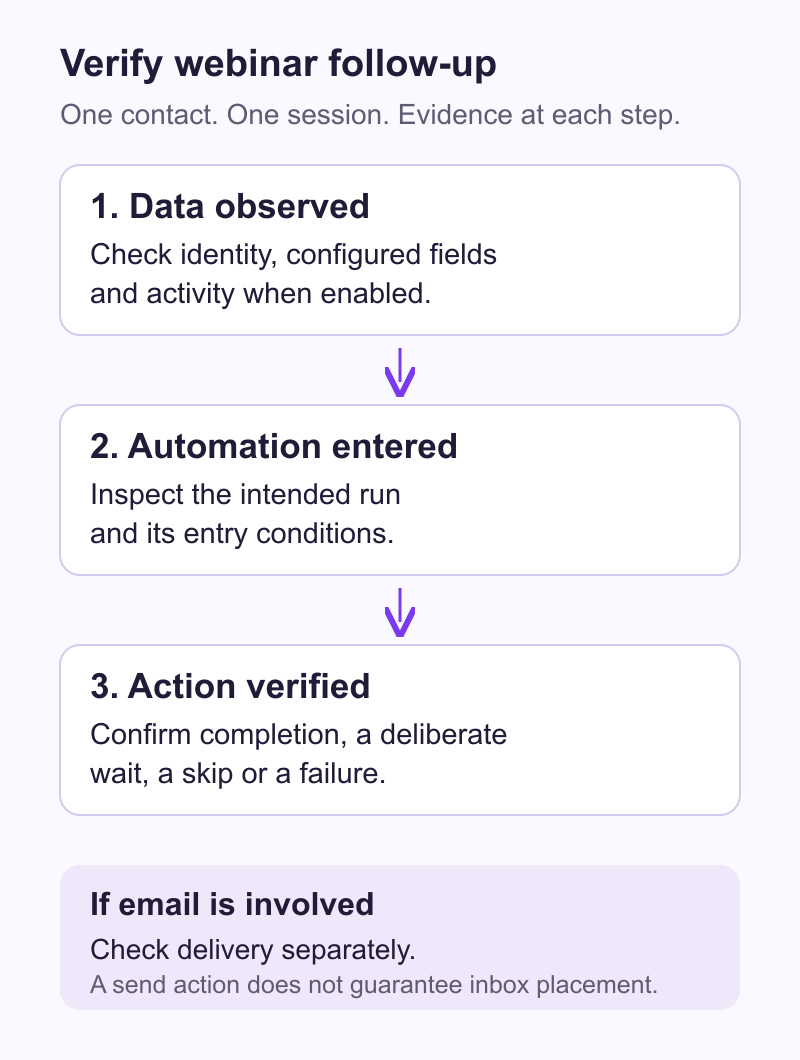
The diagram is a diagnostic sequence, not a claim that all connectors process data together or that an email has been delivered.
Match the webinar signal to an ActiveCampaign trigger
Choose a start condition that your connector actually produces. ActiveCampaign's trigger reference explains the available conditions and their plan requirements.
For common webinar workflows, inspect the distinction between these signals:
- A list subscription requires the relevant subscription event. A contact already on the list needs separate consideration.
- A tag-based start depends on the tag being added. Finding the tag on a contact does not establish a new addition for today's webinar.
- A contact-field change depends on the configured field condition. Check the actual value and change, rather than assuming every contact update qualifies.
- An event-based start depends on the expected recorded event and any entry conditions attached to it.
As checked on 9 November 2026, ActiveCampaign lists tag and list triggers across its base subscriptions. Contact field changes and Event is recorded are listed for Plus, Professional and Enterprise, with Starter excluded. Check your account's current entitlement before designing around either option.
Also check what produced the registration. ActiveCampaign's Submits a form trigger refers to an ActiveCampaign form. A webinar platform sending contact data does not, by itself, establish that such a form was submitted.
Check when the qualifying data existed
A condition evaluated at entry may see a different state from the contact record you inspect later. If a list subscription occurs before the field or activity used by an entry condition arrives, the finished contact record can look correct even though that condition was not met at the relevant time.
ActiveCampaign's Event Tracking guide makes this ordering explicit for an event condition attached to a list-subscription trigger: the event requirement must already be satisfied before the subscription. It also describes starting directly from a recorded event.
Inspect the actual ordering for your connection and automation. Avoid assuming that all list, tag, field and activity updates arrive as one operation. An event value containing session details also does not establish that every nested value is available as a separate automation filter.
Verify each step before relying on follow-up
Use one permitted test contact and one agreed session. Record the starting state and expected outcome before producing a new registration or attendance signal. Keep customer records and real campaigns out of exploratory tests.
This matrix helps distinguish an observed result from an assumption about the next step. Skip the activity checkpoint when your intended workflow does not use Event Tracking.
| Checkpoint | Evidence to inspect | What it establishes | Still to verify |
|---|---|---|---|
| Contact matched | Intended account, email and expected contact change | The right contact was found or updated | Session activity and automation entry |
| Configured data arrived | Selected list, exact tags and field values | The requested contact data is present | A fresh transition and relevant session |
| Activity recorded, if configured | Expected registration or attendance event and available session context | The relevant activity is visible | Entry conditions and actual entry |
| Intended automation entered | Contact's run, start condition and entry segment | This automation accepted the contact | Branch, wait and action outcome |
| Intended action resolved | Action result, wait, branch and campaign readiness | The action ran, waited, skipped or failed | Whether that result matches the test case |
| Email delivery checked, if relevant | Sending evidence and controlled receiving mailbox | What happened after the send action | Inbox placement cannot be guaranteed |
For action-level inspection, ActiveCampaign's Activity Logs show run paths and individual action outcomes. Viewing them requires automation permissions. The documentation allows up to five minutes for log visibility, so a missing immediate log entry is not a reliable connector timing measurement.
Write the outcome precisely. "The contact has the tag" is useful evidence. "Follow-up works" requires the remaining checks. An intentional wait or a correctly skipped email may be the expected result, especially when the person is not eligible to receive it.
Test a returning contact and a second webinar
Consider a hypothetical contact, Alex, who registered for an earlier session. Alex already has your general webinar tag and is subscribed to the selected list. Your automation starts when that tag is added.
Alex registers for the next session. The contact record can update, but the existing tag does not demonstrate a new tag-addition event. The same issue applies if your chosen start depends on a new list subscription while Alex remains subscribed.
ActiveCampaign's repeat-entry guidance explains that Runs multiple times permits entry when the trigger conditions recur. Changing that setting alone does not create a new qualifying signal. Other automation entry settings can restrict recurrence too.
For this example, compare the desired outcome with the new evidence:
- If every new registration should start follow-up, identify the supported signal that occurs for each registration. Verify it for an existing contact as well as a new one.
- If you use an eligible event-based route, confirm that the configured event arrived and the intended automation accepted it. Choosing an event trigger is only part of that check.
- If the person attends the second webinar, inspect attendance evidence for that session. A standing webinar tag or earlier registration cannot prove attendance today.
- If the same contact returns again, preserve session identity in your test record. A contact field showing the latest session is not a complete history of previous sessions.
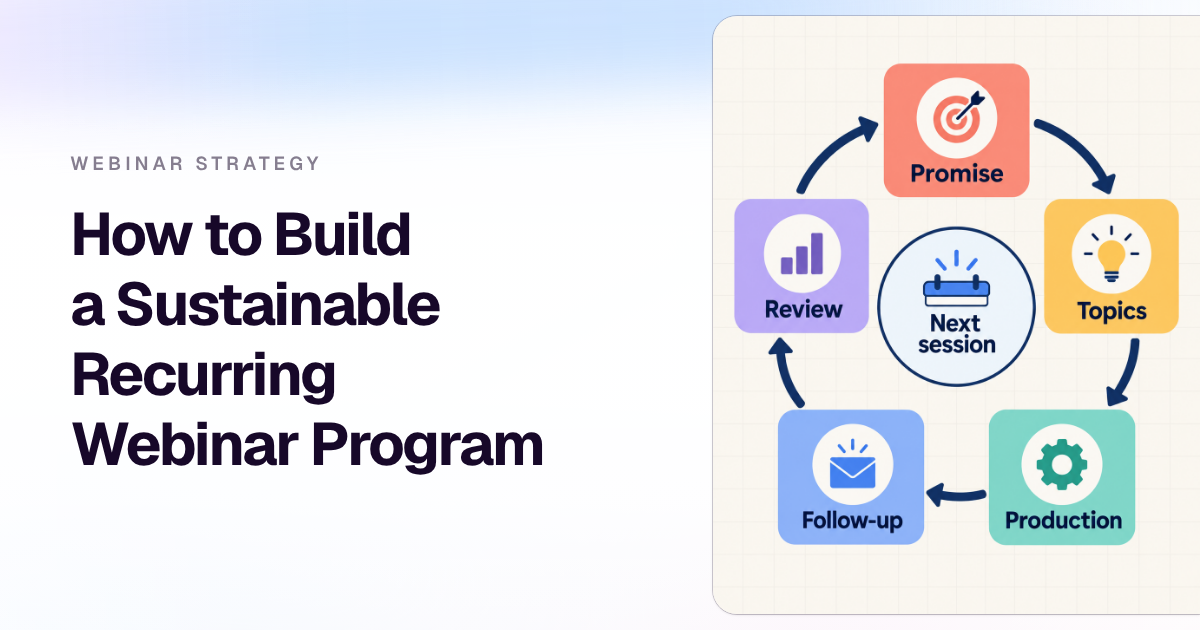
Do not remove tags or unsubscribe and resubscribe people simply to force a test to enter. Choose a signal that represents the job, and preserve subscription preferences. The wider recurring webinar workflow should retain session context as the programme repeats.
Find the first missing outcome
Work from the earliest unproven checkpoint. Replaying the same registration repeatedly can obscure which attempt produced a later result.
- No expected contact change. Check the destination account, contact email, connection status and selected data. Confirm that the source action occurred and is supported by the connector.
- Contact data arrived, but activity is absent. Check whether Event Tracking was intended and configured. Contact sync and optional activity delivery can have different prerequisites.
- Activity or data arrived, but no entry appears. Inspect the exact start condition, entry segment, activation time, recurrence and concurrency settings. Check whether the qualifying signal was new and whether required data existed when evaluated.
- Entry appears, but the action did not happen. Inspect the run's branch, wait and action result. Check that the referenced campaign is ready and that the contact is eligible for that action.
- The email action ran, but nothing arrived. Inspect sending and delivery evidence separately, then check the controlled mailbox, including spam or other inbox tabs. Do not equate a completed send action with inbox placement.
The automation troubleshooting guide distinguishes missing entry from skipped email. It highlights active status, trigger timing, branch conditions and subscription eligibility. For list-based automated email, check subscriptions and unconfirmed, unsubscribed or bounced status. Preserve consent and suppression rules while investigating.
Compare each observed result with the written test case before changing anything. Correct one identified configuration issue, then repeat the relevant permitted case. Avoid bulk reenrolment as a shortcut around an unexplained result.
Apply the checks to HeyStream
HeyStream's ActiveCampaign integration sends supported registration and attendance data in one direction, from HeyStream to ActiveCampaign. It can create or update contacts, apply configured additional tags, optionally subscribe contacts to a list, and send selected registration fields. ActiveCampaign automations remain a separate configuration task for your team.
The guide to connect ActiveCampaign to HeyStream owns credential and connection steps. It explains that broadcast activity uses optional Event Tracking account ID and key settings. Both must be supplied together if you want that activity sent. Leaving both blank allows contact sync without Event Tracking activity.
That gives you two different acceptance questions. If the connection is intended only to update contacts and selected data, verify those results and the trigger built around them. If it should send broadcast activity too, verify the expected registration or attendance event before checking automation entry. A successful contact update is insufficient evidence for the optional activity route.
Treat configured additional tags as tags for synced contacts, rather than attendance-only evidence. Keep connector scope precise: this registration-and-attendance example does not establish replay, CTA-click or no-show event delivery to ActiveCampaign. CRM and email integrations are currently included in Growth and above; confirm eligibility on HeyStream pricing.
Before the next broadcast, write down one new-contact case and one returning-contact case. For each, name the session, signal, expected automation entry and permitted action. Keep the observed evidence beside each checkpoint so your team knows exactly which part of follow-up it can rely on.