A good webinar cancellation email does three things quickly: it names what changed, gives the old and new details that are known, and tells the recipient what to do next. The email is only half the job. Your registration page, calendar event, join link, reminders, partner messages and automated follow-up must tell the same story.
Use the templates below for organiser-led changes to the whole webinar. If one attendee wants to cancel their own registration, that is a different message and workflow.
Choose the right message for the event state
Do not call every change a reschedule. The right label depends on what your team has confirmed.
| Event state | What you know | What the recipient should do | Template |
|---|---|---|---|
| Cancelled | The planned session will not happen and there is no confirmed replacement | Remove the event and ignore the old join link | Cancellation |
| Postponed | The planned session will not happen on the original date, but the replacement date is not confirmed | Remove or disregard the old date and wait for a dated update | Postponement |
| Rescheduled | The replacement date and time are confirmed | Accept the updated invite, register again, or use the confirmed replacement link | Reschedule |
| Interrupted | The live session started but could not continue as planned | Follow the next confirmed update, replacement-session or recording instruction | Technical interruption |
This vocabulary is an operating aid, not a universal platform definition. Your webinar and calendar tools may use the same words differently. Confirm the actual event state before choosing a template.
Confirm these seven facts before you write
The fastest way to create a bad cancellation email is to start writing before the operational decision is complete. Collect these facts first:
- Event state. Is the webinar cancelled, postponed, rescheduled, or interrupted?
- Original details. Record the event name, original date, time, and time zone.
- Replacement details. If confirmed, record the new date, time, time zone, registration status, calendar action, and join link.
- Recipient action. Decide the one thing each recipient should do now.
- Reason sentence. Use a short approved explanation, or omit it when the reason is sensitive or uncertain.
- Alternative. Confirm whether a replacement session, recording, resource, credit, or refund information genuinely exists before mentioning it.
- Reply owner. Name the person or monitored address that can answer questions.
Leave an unverified field out. A blank promise is safer than a confident instruction that turns out to be wrong.
What every changed-webinar email should include
Put the status in the subject line and first sentence. Then give enough original detail for the reader to recognise the event. If there is a confirmed replacement, show the old and new date side by side and repeat the time zone.
Every message needs one clear next action. Tell the reader to remove the old event, accept an updated invitation, register again, use a new link, or wait for another update. Avoid vague phrases such as "we will be in touch" when you can name the next update date and owner.
Keep the apology proportionate. One direct sentence is usually enough. Logistics belong before background.
Template 1: cancel the webinar with no replacement
Use this when the webinar will not go ahead and you do not have a confirmed replacement date.
Subject line options
- Cancelled: [Webinar name] on [Original date]
- [Webinar name] will not take place on [Original date]
- Important update: [Webinar name] has been cancelled
Email template
Hi [First name],
[Webinar name], scheduled for [Original date] at [Original time] [Time zone], has been cancelled.
Please remove the event from your calendar and do not use the original join link.
[Optional approved reason: We made this decision because ...]
[Optional confirmed alternative: You can find ... at [Link].]
If you have questions, reply to this email or contact [Name or team] at [Contact details].
We are sorry for the change and appreciate your understanding.
[Sign-off]
For a same-day cancellation, shorten the message further. Lead with "Cancelled today" and repeat the original time so the update cannot be mistaken for another event.
Do not mention a refund, credit, recording, or replacement session until the owner and timing are confirmed. For a paid event, use the policy your team has approved rather than inventing wording from a generic template.
Template 2: postpone before the new date is confirmed
Use this when the original date is no longer valid but your team has not confirmed the replacement.
Subject line options
- Postponed: [Webinar name] on [Original date]
- New date to follow for [Webinar name]
- [Webinar name] will not take place on [Original date]
Email template
Hi [First name],
[Webinar name] will not take place on [Original date] at [Original time] [Time zone]. We have postponed the session and have not yet confirmed the new date.
Please remove or disregard the original calendar event and join link. We will send the next update by [Update date] from [Name or team].
[Optional approved reason: We made this change because ...]
If you have questions before then, reply to this email or contact [Contact details].
We are sorry for the disruption.
[Sign-off]
Do not ask people to "save the date" when no date exists. If registration will transfer automatically, confirm that behavior in your actual platform and event configuration before saying so.
Template 3: reschedule to a confirmed date
Use this when the replacement date and time are final.
Subject line options
- New date: [Webinar name] is now on [New date]
- Rescheduled: [Webinar name], [New date] at [New time]
- Please update your calendar for [Webinar name]
Email template
Hi [First name],
We have rescheduled [Webinar name].
Original: [Original date], [Original time] [Time zone]
New: [New date], [New time] [Time zone]
Please [accept the updated calendar invitation / register again at New registration link / replace the old event with the attached invitation].
Your join details are [unchanged and confirmed / replaced by this confirmed New join link]. Do not use the old link unless we have explicitly confirmed that it remains valid.
[Optional approved reason: We made this change because ...]
If the new time does not work for you, [Confirmed alternative or contact path].
We are sorry for the inconvenience and hope you can join us.
[Sign-off]
The instruction in square brackets is the most important line. Choose one action and delete the others before sending.
Template 4: move one session in a webinar series
A series update must identify the exact occurrence. Otherwise, recipients may think every session has changed.
Subject line options
- Date change for [Session name] in [Series name]
- [Series name] update: [Original date] session moved
- New date for [Session name]: [New date]
Email template
Hi [First name],
We have moved the [Session name] session in [Series name].
Original occurrence: [Original date], [Original time] [Time zone]
Replacement occurrence: [New date], [New time] [Time zone]
All other sessions in the series [remain unchanged / have the following confirmed changes: Details].
Please [accept the updated occurrence / replace the series invitation / register again using New registration link].
The join link for this occurrence is [Confirmed join-link status and link].
Questions? Reply to this email or contact [Name or team] at [Contact details].
[Sign-off]
Check whether your calendar update changes one occurrence or the whole series. Then open the invitation as a recipient would. A correct organiser view does not prove that an attendee sees the right date.
Template 5: notify registrants after a live interruption
Use this after a session starts but cannot continue as planned. Say what happened to the session without guessing at the root cause.
Subject line options
- Update on today's [Webinar name] session
- [Webinar name] ended early: next update by [Time]
- Next steps after today's [Webinar name]
Email template
Hi [First name],
Today's [Webinar name] session [ended early / was paused / could not continue] at [Time] [Time zone].
We will send the next confirmed update by [Update time and date].
[Choose one confirmed next step: We will restart at New time using Confirmed link / We have scheduled a replacement for New date / We are checking the recording and will confirm its availability by Update date.]
Please [Recipient action].
We are sorry for the interruption. If you need help, reply to this email or contact [Name or team] at [Contact details].
[Sign-off]
Do not promise a recording until someone has checked that it is complete, usable, and approved for release. Do not name a technical cause until the team has verified it.
Platform email behavior is not universal
Platform examples are useful because they show how much the details vary.
Microsoft's guide to Teams webinar emails treats attendee registration cancellation, whole-webinar cancellation, and date or time updates as separate immediate notifications. That distinction helps an operator decide whether the message should remove an attendee, cancel the event, or move it.
Zoom's webinar email documentation separates an updated notification for a date or time change from a rescheduled notification for recurrence or registration-type changes. It also lists different reminder, attendee follow-up, absentee follow-up, and cancelled-webinar templates. Available controls depend on account type, role, registration settings, and event configuration.
Livestorm's event setup guide says that when a registered session is cancelled, its remaining scheduled emails are cancelled too. That is one provider's documented behavior, not a safe assumption for another tool.
The older Cisco guidance on Webex webinar template levels distinguishes user-level attendee-removal templates from site-level whole-webinar cancellation templates. It is another reason to inspect the exact template and account level involved.
The rule is simple: verify what your platform sends, what it stops, and what the recipient sees. A platform action may not update every calendar, CRM workflow, partner message, or external registration source.
Run the after-send systems audit
Sending the email creates a new obligation. Every other source of event information must now agree with it.
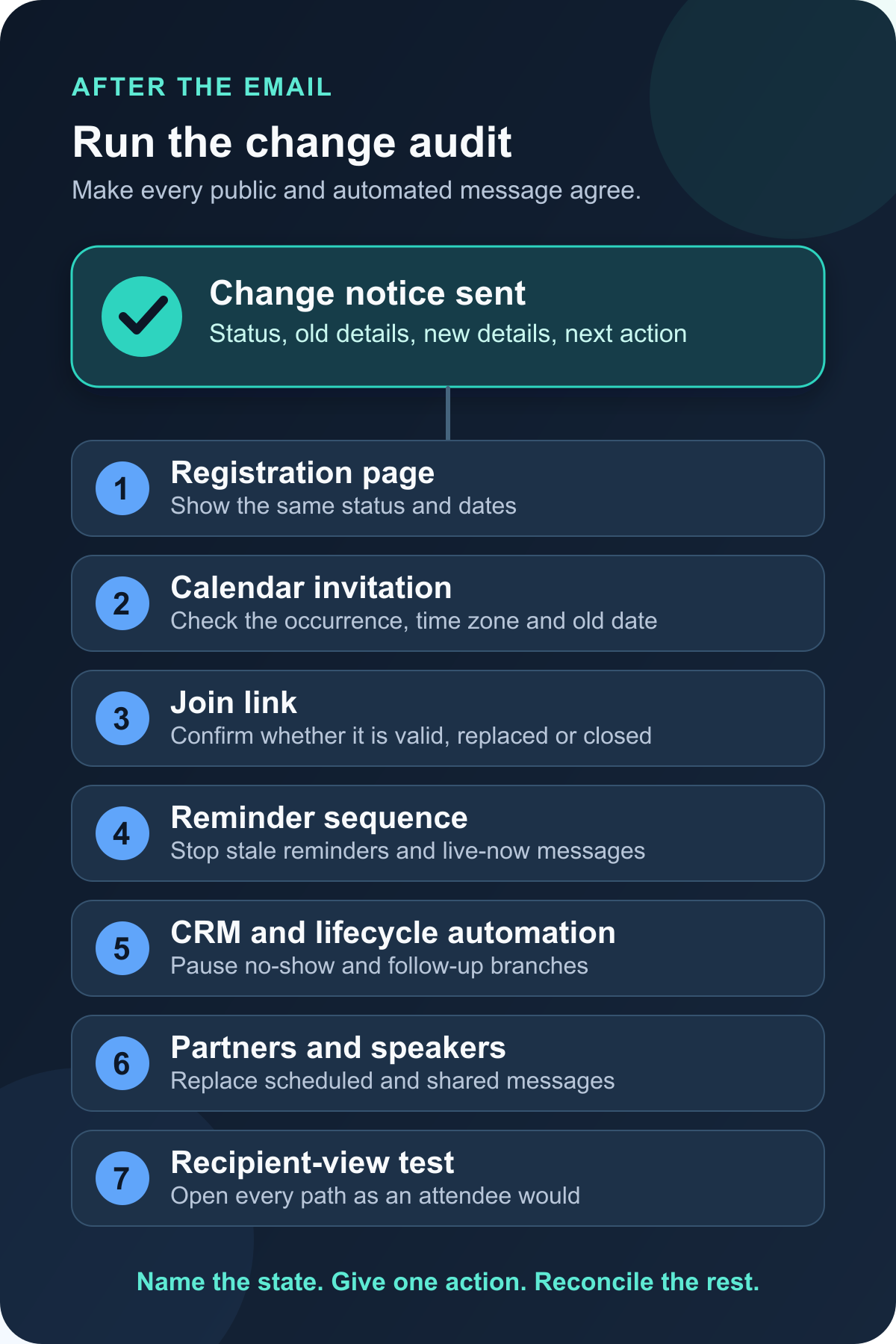
Assign an owner and timestamp to each check:
- Registration and public event page. Update the webinar registration page, embedded form, campaign landing page, and any external listing. Check the public view while signed out.
- Calendar invitation. Confirm the correct event or occurrence changed. Check the old date, new date, time zone, description, and location or join field.
- Join link. Decide whether the original link remains valid, redirects, or must be replaced. Test the link in the recipient context.
- Reminder sequence. Inspect confirmation, day-before, hour-before, and "live now" messages. If this is an ordinary upcoming event rather than a change, use the separate webinar reminder email templates.
- CRM and lifecycle automation. Pause or edit stale reminders, no-show branches, replay messages, lead alerts, and webinar follow-up automation. Confirm who entered each branch before changing it.
- Partners and speakers. Replace scheduled social posts, partner email copy, speaker invitations, sponsor messages, sales outreach, and customer-success notes.
- Recipient-view test. Register with a test address, open the public page, inspect the calendar event, follow the link, and confirm the next message. Record the result.
This audit is part of the wider B2B webinar workflow. Registration, attendance, replay, and follow-up are connected. A changed date can leave contradictory messages anywhere in that chain.
Common mistakes that create more confusion
- Hiding the cancellation below a long apology.
- Calling the event rescheduled before the replacement date is confirmed.
- Omitting the original date, time, or time zone.
- Reusing a join link without testing it.
- Assuming a calendar change reaches every registrant.
- Forgetting people who registered through a partner, imported list, or external form.
- Leaving reminder, no-show, or replay messages active after the event state changes.
- Promising a refund, credit, registration transfer, or recording before the policy and owner are confirmed.
- Sharing a sensitive or speculative reason for the change.
- Describing an interrupted session as resolved before anyone validates the fix.
Copy-and-check worksheet
Paste this into the working document for the event. Complete it before approving the email.
Event state: [Cancelled / Postponed / Rescheduled / Interrupted]
Original event details: [Name, date, time, time zone]
Confirmed replacement details: [Date, time, time zone, registration, calendar, join link]
Recipient action: [One action]
Approved reason sentence: [Sentence or omit]
Confirmed alternative: [Resource, replacement, recording, policy information, or none]
Reply owner: [Name, team, monitored address]
Audit owners: [Registration, calendar, join link, reminders, CRM, partners, follow-up]
Recipient-view test: [Tester, timestamp, result]
The working rule is short enough to remember: name the state, give one action, then reconcile every other source. Clear email copy matters. Consistent execution is what stops the next automated message from undoing it.