A product demo webinar is not the same thing as a feature tour with a calendar invite around it.
The best sessions give the host a clear path: name the problem, show one useful workflow, invite useful interaction, place the next step when value is visible, and close with a follow-up plan people can understand.
That is what a product demo script is for. It keeps the presenter from improvising the most important parts of the session: the opening, the transition into the product, the prompts that create audience signal, the CTA, the Q&A handoff, and the close.
Use this product demo webinar script as a working template. Adjust the language for your product, audience, and next step, but keep the structure tight.
What is a product demo script?
A product demo script is the talk track and transition plan a presenter uses to show a product around a buyer problem.
For a B2B SaaS team, it should do more than list features. It should explain who the demo is for, what problem the product moment solves, what the audience should notice, and what the next step should be.
A product demo webinar script adds a few live-session jobs:
- Welcoming attendees and setting expectations.
- Turning the registration promise into a clear session agenda.
- Moving from problem framing into the product without a clumsy handoff.
- Prompting chat, Q&A, polls, or reactions at useful moments.
- Introducing CTAs while the value is visible.
- Handling questions without losing the thread.
- Closing with replay, resources, and follow-up instructions.
Gong Labs analyzed millions of web-based product demos and found that stronger demos start from the buyer's priorities and leave room for questions. For a webinar, that means your script should lead with one audience problem, not every feature your team could possibly show.
Product demo webinar script vs checklist vs run of show
Before you write the script, separate it from the other planning documents.
| Asset | What it answers | Use it for |
|---|---|---|
| Product demo webinar script | What should the host say? | Opening language, demo transitions, CTA prompts, Q&A framing, and the closing handoff. |
| Product demo webinar checklist | What needs to be ready? | Audience, offer, registration page, product state, presenters, assets, reminders, and follow-up setup. |
| Webinar run of show | Who does what, and when? | Timing, presenter roles, screen-share cues, slide/product transitions, backup plans, and production notes. |
| One-to-one sales demo script | How should a rep guide a specific account? | Discovery-led demos where the conversation can change based on one buyer's questions. |
If you need the prep list first, use the product demo webinar checklist. If your team needs roles and timing, pair this with a webinar run of show template.
Before you write: choose one audience, one problem, and one next step
A product demo webinar gets messy when the team tries to serve every persona and show every workflow.
Decide these three things first:
| Decision | Example |
|---|---|
| Audience | Demand generation managers running recurring demo webinars. |
| Problem | Registrants attend, but the team does not know who engaged or what follow-up to send. |
| Next step | Book a deeper demo, start a trial, view pricing, invite a teammate, or watch the replay. |
Your script should keep coming back to that thread. If a product moment does not support the audience, problem, or next step, save it for Q&A or a follow-up asset.
Product demo webinar script template
Use this as the core talk track. Keep the bracketed parts as placeholders until your team fills in the real audience, workflow, and offer.
| Moment | Goal | Sample language |
|---|---|---|
| Pre-live reminder | Set the promise before attendees join. | "We are going live in five minutes. Today we will show how [audience] can [job] without [pain]. The replay and resources will be sent after the session." |
| Welcome | Make people feel oriented quickly. | "Welcome, everyone. I am [name], and today we are walking through how [audience] can solve [problem] using [product/workflow]." |
| Audience promise | Tell people what they will leave with. | "By the end, you will have a clear way to [outcome], plus a few checkpoints you can use with your own team." |
| Agenda | Create a simple path. | "We will cover three things: first, the problem; second, the workflow in the product; third, how to decide whether this is the right next step for you." |
| Problem framing | Avoid jumping straight into features. | "The reason this is difficult is usually not [surface issue]. It is that [deeper workflow problem]." |
| Product setup | Prepare the audience for what they are about to see. | "I am going to show this in a sample workspace so you can see the flow without any customer data on screen." |
| Demo moment one | Show the first workflow clearly. | "Here is where [role] starts. Notice [specific product action] because this is what changes [old process]." |
| Transition | Keep the narrative moving. | "Once that is in place, the next question is not just whether people showed up. It is what they did while they were there." |
| Interaction prompt | Create useful audience signal. | "Drop a note in chat: which part of this workflow is hardest for your team right now?" |
| CTA moment | Ask when value is visible. | "If this is the workflow you are trying to build, use the button on screen to book a deeper walkthrough with your own use case." |
| Q&A | Invite useful questions without derailing the session. | "We will take questions now. If your question is account-specific, send it through the Q&A and we will follow up directly." |
| Close | Recap and make follow-up obvious. | "We looked at [problem], walked through [workflow], and showed how to [next step]. You will receive the replay and resources shortly." |
Cvent's webinar script guide frames a script as a way to plan structure, interaction, transitions, and CTAs. That is especially important for a product demo webinar, where the presenter has to manage the story and the software at the same time.
Opening script: welcome people into the problem, not the feature list
The opening should not sound like a sales deck warming up. It should give the audience confidence that the session is about their job.
Try this:
"Welcome, everyone. I am [name] from [company]. Today we are going to walk through how [audience] can [job] without [pain]. We will keep this practical: a short setup, a live product workflow, a few prompts for your questions, and a clear next step if this looks useful for your team."
Then add expectations:
"Use the chat for quick reactions and the Q&A box for questions you want us to answer directly. If you cannot stay for the whole session, we will send the replay afterward."
This opening does three useful things. It names the audience, promises a specific workflow, and tells attendees how to participate.
Problem-to-demo transition script
The transition from slides or context into the product is where many demo webinars lose momentum. The host says "let me share my screen" and then the audience waits while the presenter finds the right tab.
Script the transition instead:
"Let us move from the problem into the workflow. If your team is trying to [job], the sticking point is usually [problem]. I am going to show the exact part of the product that helps with that moment."
Then narrate the screen change:
"You should now see [screen/product area]. I will start with [first step] and then show how it connects to [second step]."
This keeps the audience inside the story while the presenter changes context.
Demo section script: show the product through a buyer workflow
A good product demo webinar should feel like a guided workflow, not a tour of navigation menus.
Pick two to four product moments. Each one should have a job:
| Product moment | What the host should explain |
|---|---|
| Setup moment | Why this is the starting point and what has already been prepared. |
| Value moment | What changes for the audience when the workflow works. |
| Proof moment | What the viewer can inspect, confirm, or learn from the product. |
| Next-step moment | What action the viewer can take now or after the session. |
Use this language:
"The first thing to notice is [specific product state]. This matters because [buyer problem]. Instead of [old way], the team can [new workflow]."
Then keep the transition clean:
"Now that the session is set up, let us look at what happens when someone actually engages."
For HeyStream users, this is where a browser-based webinar studio, branded watch experience, and product-demo workflow can sit together. The demo does not have to jump between disconnected tools just to show the host, session, CTA, replay, and audience context.
Interaction prompts and audience signal moments
Audience interaction should not be a random "any questions?" every 15 minutes. Prompt interaction at moments where the answer can improve follow-up or reveal what people care about.
| Script moment | Sample prompt | What it can reveal |
|---|---|---|
| After the problem frame | "Which part of this is most familiar: setup, attendance, engagement, or follow-up?" | Where the audience feels the pain. |
| After the first product moment | "Would your team use this for live viewers, replay viewers, or both?" | Which use case matters. |
| Before the CTA | "If you were building this workflow, what would have to connect to your current process?" | Integration and adoption concerns. |
| During Q&A | "Add your question with the context: role, workflow, or blocker." | Whether the question is strategic, technical, or commercial. |
Treat these as signals, not proof. A chat response, CTA click, or replay view can help the team prioritize follow-up, but it should not be treated as a deterministic buying score.
That is where audience intelligence matters: it gives the team viewer-level context they can use carefully, without pretending one action tells the whole story.
CTA script: ask for the next step when value is visible
The CTA does not have to wait until the final slide. In a product demo webinar, the strongest CTA often comes after the audience has just seen the relevant product moment.
Use one CTA at a time:
| CTA | When to use it | Sample language |
|---|---|---|
| Book a deeper demo | The workflow is relevant but needs account-specific context. | "If you want to map this to your own webinar program, use the button on screen to book a deeper walkthrough." |
| Start a trial | The product is self-serve enough for immediate exploration. | "If you want to try this with a real session, start a trial and build your first demo webinar from there." |
| View pricing | The audience is clearly comparing tools. | "If budget or plan fit is your next question, the pricing page is linked on screen." |
| Download a checklist | The audience needs an implementation asset. | "If you are still preparing the session, grab the checklist and use it before your next demo webinar." |
| Invite a teammate | The buyer needs internal alignment. | "If someone else owns follow-up or sales handoff, send them the replay and the checklist after the session." |
For product demo webinars, the CTA should connect to what people just saw. If you showed live and replay prompts, link to webinar CTAs. If you showed follow-up routing, link to webinar follow-up automation.
Q&A script and objection handling
Q&A is easier when the host has a script for how questions will be handled.
Open it like this:
"We are going into Q&A now. I will group similar questions together so we can cover more ground. If your question is specific to your account, add a little context and we will either answer it here or follow up after the session."
For unknown answers:
"I do not want to guess on that. We will confirm the detail and send you the answer with the replay."
For edge-case questions:
"That is a good edge case. The general workflow is [summary]. For your setup, we would want to look at [specific factor] before recommending the best path."
For commercial questions:
"Plan fit depends on [factor]. I will share the pricing link, and if you want a recommendation for your use case, book a follow-up and we can map it properly."
This keeps the session helpful without turning it into a scattered product support call.
Closing script: recap, replay, follow-up, and next action
The close should make the next step obvious for attendees, replay viewers, and people who need to bring teammates into the decision.
Use this:
"To recap, we started with [problem], walked through [product workflow], and showed how [audience] can [outcome]. If this is relevant to your team, the next best step is [CTA]. We will send the replay, resources, and any unanswered questions after the session."
Then segment the follow-up:
"If you asked a question, we will include the answer in your follow-up. If you clicked the CTA, you will get the next-step resource. If you watch the replay later, the same links will be available there too."
This is where a live demo becomes more than a live event. The replay, CTA behavior, questions, and viewing context can help the team follow up with more relevance.
Where HeyStream fits
HeyStream is built for B2B teams that want product demo webinars to feel polished and measurable without stitching together a meeting tool, landing page, CTA overlay, audience tracker, and follow-up workflow by hand.
Use HeyStream when your demo needs:
- Product demo webinars with branded registration and watch pages.
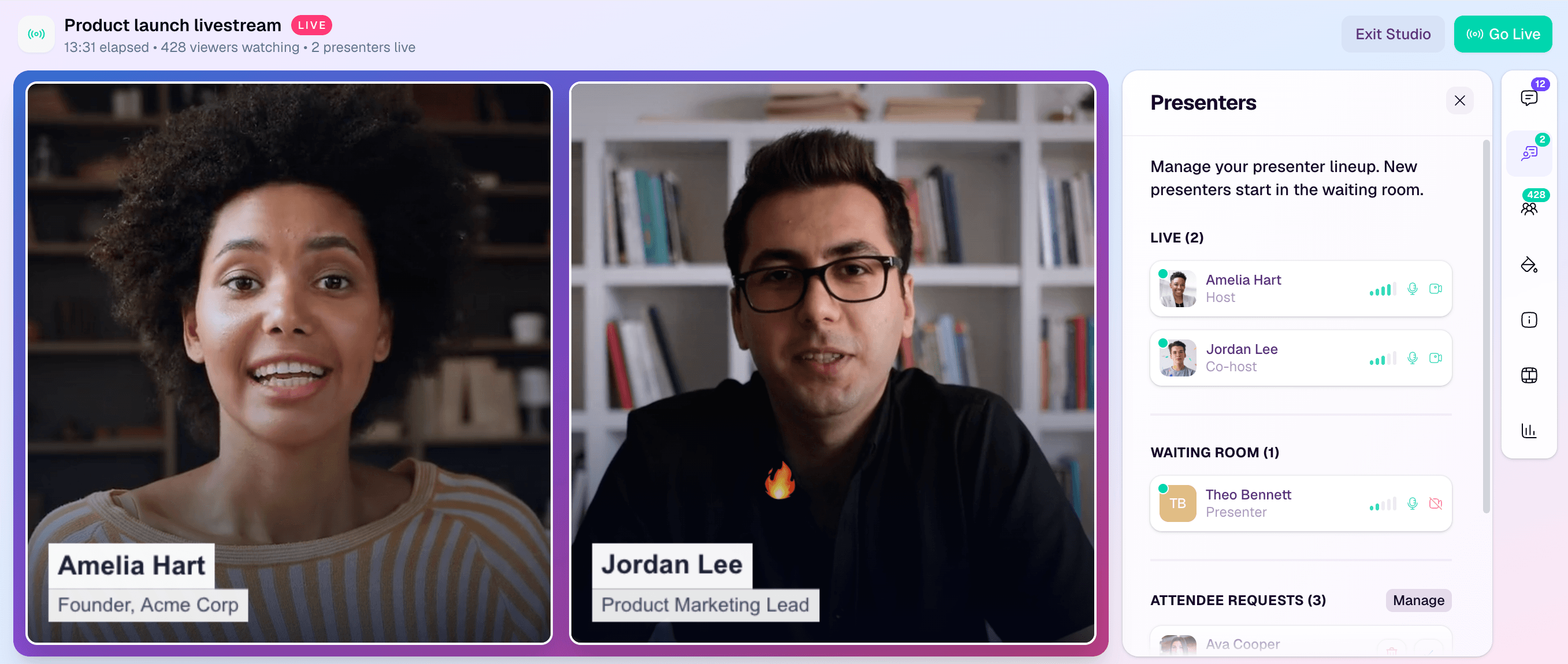
- A live Streaming Studio for browser-based presenter flow.
- Webinar registration pages that match the promise of the session.
- Live and replay CTAs that move viewers to the next step.
- Viewer-level context for questions, clicks, replays, and follow-up.
- Behavior-based follow-up after the event.
It is not a replacement for your CRM, sales engagement platform, or every product-tour tool. It is the webinar layer that helps your team run the live demo, capture useful audience actions, and keep the follow-up connected to what people actually did.
A practical product demo webinar script flow
Here is the whole structure in one view:
| Stage | Host goal | Product/demo cue | Follow-up value |
|---|---|---|---|
| Welcome | Orient the audience. | Show title slide or branded watch page. | Confirms the session promise. |
| Problem | Make the demo relevant. | Name the workflow and pain. | Clarifies audience segment. |
| Demo moment one | Show the core workflow. | Share product screen. | Reveals what viewers care about. |
| Interaction | Invite useful response. | Chat, Q&A, poll, or prompt. | Adds context for follow-up. |
| CTA | Offer the next step. | On-screen CTA or linked resource. | Captures action when interest is highest. |
| Q&A | Handle questions cleanly. | Group questions by theme. | Surfaces objections and use cases. |
| Close | Recap and route next steps. | Replay and resources. | Sets expectations for post-event messages. |
The script does not need to make the host sound robotic. It should make the important moments predictable, so the presenter has more freedom inside the conversation.
Final takeaway
A product demo webinar script is not there to make the host read every word. It is there to protect the shape of the session.
When the script starts with the audience problem, shows the product through one clear workflow, prompts useful interaction, and places the CTA at the right moment, the session becomes easier to follow live and more useful after the replay.
That is the real job: help the right viewers understand the product, take the next step, and give your team enough context to follow up well.