A good webinar CTA does not interrupt the session. It gives the viewer a natural next step at the moment they are most ready for one.
For webinars, a CTA is the specific prompt that tells a viewer what to do next, such as downloading a worksheet, booking a walkthrough, starting a trial, registering for the next session, or clicking an offer inside the replay. The best webinar CTA matches the viewer's current level of intent instead of treating every attendee as ready for the same sales step.
If you need the basic meaning, start with what a webinar CTA is. Use this page when you want practical examples and placement ideas. When you are ready to build those prompts into live and replay workflows, HeyStream's conversion tools show how CTA offers, clicks, and follow-up signals fit inside the broadcast experience.
That distinction matters. Many webinar CTAs are treated as admin: a link in chat, a closing slide, a quick verbal reminder before everyone leaves. Those can work, but they often depend on the viewer remembering what to do after their attention has already moved somewhere else.
The stronger approach is to plan CTAs around the viewer's moment. What do they understand now? What are they ready to do next? What amount of commitment makes sense at this point in the session?
This article gives practical webinar CTA examples for live and replay sessions, with a simple way to decide which offer belongs where.
Start With the Viewer Moment
The best CTA is not always the highest-intent offer.
If someone is still learning the problem, asking them to book a demo can feel premature. If someone has just watched a detailed product walkthrough, offering a beginner checklist may feel too soft. The CTA should match what the viewer has just learned and what they are likely to need next.
For most B2B webinars, there are five useful CTA moments:
- Before the session: registration, calendar saves, companion resources, and audience qualification.
- Early in the session: low-friction resources that help viewers follow along.
- After a useful framework or insight: templates, checklists, guides, or diagnostic tools.
- After a demo, case study, or strong proof point: booking, trial, signup, or consultation offers.
- During replay: the same core offer, adjusted for viewers who are catching up after the live event.
This keeps the webinar from feeling like a long educational session with a sales pitch at the end. Instead, it becomes a guided experience where each CTA fits the stage of attention.
Example 1: The Companion Resource CTA
Use this early in the webinar, especially when the session includes a framework, checklist, worksheet, or repeatable process.
Example CTA copy:
Get the planning worksheet for this session
Why it works:
The offer helps the viewer engage with the content they are already watching. It does not ask for a big commitment. It simply makes the session more useful.
Good variations:
- Get the checklist before we walk through it
- Download the worksheet for this framework
- Save the examples we will use in today's session
- Get the template and follow along
Where to place it:
Show it near the start, once the viewer understands what the session will cover. This can also work on the registration confirmation page if the resource helps people prepare before the broadcast.
What to avoid:
Do not use the companion resource as a disguised sales asset. If the CTA promises a worksheet, give them a worksheet. The resource should make the webinar better, not merely push people into a nurture sequence.
Example 2: The Diagnostic CTA
Use this when the session is helping viewers understand a problem, evaluate their current setup, or identify gaps in their workflow.
Example CTA copy:
Check where your webinar follow-up is leaking intent
Why it works:
The viewer is already thinking about their own process. A diagnostic CTA gives them a way to apply the idea without asking them to speak to sales immediately.
Good variations:
- Audit your current webinar CTA plan
- Score your replay follow-up workflow
- Find the weak point in your live-event funnel
- See which audience signals you are missing
Where to place it:
Show it after you have explained the problem clearly, but before the session moves into solutions. This is often a useful middle-funnel CTA because it captures interest from people who are not ready for a demo but are ready to assess the issue.
What to avoid:
Avoid fake precision. If the diagnostic is a lightweight checklist, call it that. Do not present it as a calculator or benchmark unless it has a real methodology behind it.
Example 3: The Implementation CTA
Use this after teaching a practical framework or showing a step-by-step process.
Example CTA copy:
Get the CTA planning template
Why it works:
The viewer has just learned the idea. The implementation CTA helps them take it back to their team and use it. This is often more useful than asking for a meeting too early.
Good variations:
- Copy the webinar CTA planning sheet
- Get the replay follow-up checklist
- Download the broadcast planning template
- Save the live-session CTA map
Where to place it:
Show it immediately after the framework section, while the viewer can still connect the resource to what they just learned.
What to avoid:
Do not make the resource too broad. "Download our complete guide" is weaker than a specific template tied to the exact idea you just taught.
Example 4: The Booking CTA
Use this after a product walkthrough, customer story, detailed use case, or strong commercial argument.
Example CTA copy:
Book a 20-minute walkthrough
Why it works:
The CTA sets a clear expectation. The viewer knows what they are being asked to do and what they will get. That is stronger than a vague "Talk to sales" prompt.
Good variations:
- See how this would work for your next webinar
- Book a walkthrough for your next live session
- Plan your CTA workflow with our team
- Talk through your webinar follow-up setup
Where to place it:
Show it after the viewer has seen enough substance to understand why a conversation might be useful. In a product-led webinar, this might come after the demo. In an educational webinar, it may fit after a section that shows the operational cost of the old approach.
What to avoid:
Do not make every CTA a booking CTA. If the session is mostly educational and the audience is early-stage, a booking prompt may be too heavy. Use it when the content has earned the next step.
Example 5: The Trial or Signup CTA
Use this when the product can be tried without a complex buying process and the webinar has shown a clear use case.
Example CTA copy:
Start building your first broadcast
Why it works:
It connects the action to a concrete outcome. The viewer is not just signing up. They are starting the thing the session helped them understand.
Good variations:
- Create your first live session
- Try the CTA workflow in your own workspace
- Set up your next webinar
- Start a free trial
Where to place it:
Use it after showing the workflow in action. If the webinar includes a live demo, the signup CTA should appear when the viewer has seen enough to imagine themselves using the product.
What to avoid:
Avoid asking for a signup before the viewer understands what they are signing up to do. A trial CTA works best when the product path is obvious.
Example 6: The Next-Session CTA
Use this for recurring webinars, workshops, product education series, and multi-part events.
Example CTA copy:
Reserve your seat for the next session
Why it works:
The viewer is already engaged with the current topic. If the next session builds naturally from this one, the CTA helps turn a one-off attendee into a returning audience member.
Good variations:
- Join part two next Thursday
- Save your seat for the next workshop
- Get notified when the next session goes live
- Register for the next product walkthrough
Where to place it:
Show it near the end of the session, after the viewer has received value and understands why the next session is relevant. This is especially useful when you are building a recurring webinar program rather than running isolated events.
What to avoid:
Do not promote a next session that feels unrelated. The next-session CTA works when the series has a clear promise and each event builds momentum.
Example 7: The Replay CTA
Use this for viewers who miss the live session or return later to watch specific sections.
Example CTA copy:
Still want the template? Get it here
Why it works:
Replay viewers are in a different context. They are not sharing the live-room urgency, but they may be more focused because they came back intentionally. The CTA should acknowledge that they are watching after the live moment.
Good variations:
- Get the resource from this section
- Book a walkthrough after watching the demo
- Send this replay to your team
- Start your setup from the replay
Where to place it:
Keep CTAs active in the replay and align them with the same content moments as the live broadcast. If the viewer reaches the demo section in replay, show the demo-related CTA there too.
What to avoid:
Avoid expired live-language in replay. "Only for live attendees" feels broken if the replay is still showing it days later. Update the copy so the replay experience feels intentional.
Match CTA Type to Commitment Level
A helpful way to plan webinar CTAs is to rank them by commitment.
Low-commitment CTAs:
- download a checklist
- save a template
- answer a poll
- register for the next session
- watch a related replay
Medium-commitment CTAs:
- complete an assessment
- join a workshop
- start a free trial
- request a personalized resource
- subscribe to a recurring series
High-commitment CTAs:
- book a demo
- schedule a strategy call
- talk to sales
- start a paid plan
- buy an event-only offer
The mistake is not using high-commitment CTAs. The mistake is using them before the viewer has enough context to say yes.
A strong webinar usually includes more than one CTA, but each one should have a different job. A resource CTA can help early viewers engage. A template CTA can help them apply the idea. A booking or signup CTA can capture the people who are ready for a bigger next step.
Plan the Follow-Up Before the CTA Goes Live
A CTA click is not the end of the workflow. It is an audience signal.
Someone who clicks a booking CTA but does not complete the form is different from someone who downloads a checklist, and both are different from someone who watches the replay without clicking anything. The CTA tells you something about intent, but only if your follow-up can act on it.
Before the webinar, decide what happens after each CTA:
- Resource clickers should receive the asset and one useful next step.
- Diagnostic or assessment clickers should receive guidance based on the problem they explored.
- Booking clickers should receive fast, relevant follow-up tied to the session topic.
- Trial or signup clickers should land in an onboarding path that reflects the webinar use case.
- Replay CTA clickers should be treated as active viewers, not as a weaker version of live attendees.
This is where conversion tools, analytics, and follow-up automation need to work together. The CTA creates the next step. The audience signal tells you how to follow up. The workflow keeps the momentum from fading after the session ends.
Making CTAs Part of the Broadcast Workflow
You can run webinar CTAs with a mix of slides, chat links, landing pages, and manual follow-up. That can be enough for a simple session.
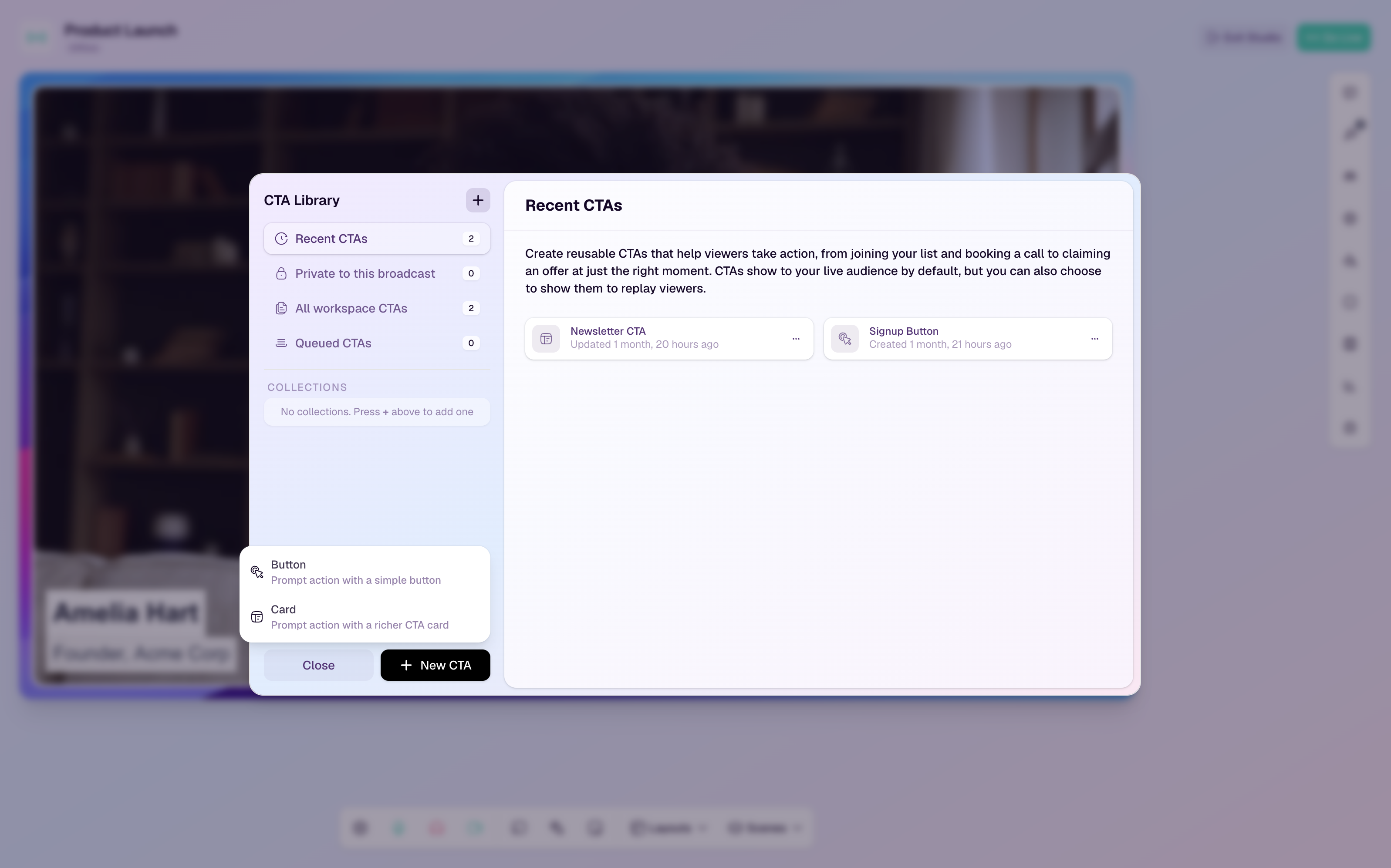
The difficulty appears when the program repeats. In a repeatable webinar growth engine, teams need to reuse CTAs, place them inside the live and replay experience, see who clicked, and connect that behavior to follow-up without rebuilding the process every time.
HeyStream is built for that workflow. Teams can create reusable CTAs, show them during live broadcasts and replays, connect them to branded watch pages, and use audience behavior to shape what happens next. Alongside the browser-based studio, that makes CTAs part of the broadcast system rather than a last-minute link.
The Takeaway
Webinar CTAs work best when they match the viewer's moment.
Use light CTAs early, practical CTAs after teaching, higher-intent CTAs after proof or demo moments, and replay CTAs that still make sense after the live session has ended. Then plan the follow-up before the CTA goes live so each click becomes a useful signal, not just another metric in a report.
The point is not to add more prompts to the webinar. It is to make the next step feel obvious when the viewer is ready for it.